

The WordPress white screen of death is a completely blank page that appears when a PHP fatal error stops your site from loading, usually due to a plugin conflict, theme issue, or exhausted memory limit. You can fix it by using the built-in recovery mode email, manually disabling plugins via your hosting file manager, or increasing your PHP memory limit. This guide walks you through the exact steps to diagnose and resolve the error so your site is back online quickly.
What Causes the WordPress White Screen of Death?
When your website loads perfectly one minute and shows nothing but a blank white page the next, it is natural to panic. However, this is one of the most common WordPress errors, and understanding why it happens is the first step to fixing it.
According to the official WordPress documentation, “both PHP errors and database errors can manifest as a white screen, a blank screen with no information”, commonly known in the community as the white screen of death (WSOD). Because the script fails before it can render any visual output or generate a standard error page, your browser simply stops loading.
The WordPress White Screen of Death is almost always “caused by PHP code errors or memory limit exhaustion”. The most frequent culprits include:
- Plugin conflicts: A newly installed, outdated, or poorly coded plugin clashes with your core WordPress files or other plugins.
- Theme incompatibility: Your active theme contains a syntax error or is not compatible with your current version of WordPress.
- Memory exhaustion: A script on your site requires more server memory than your hosting plan allocates, causing the server to kill the process silently.
Sometimes, the white screen only affects a specific page, a single post, or the WordPress admin area (/wp-admin), while the rest of your frontend continues to work perfectly.
How Do I Use WordPress Recovery Mode to Fix the Error?
Screenshot · Blogs Wizards
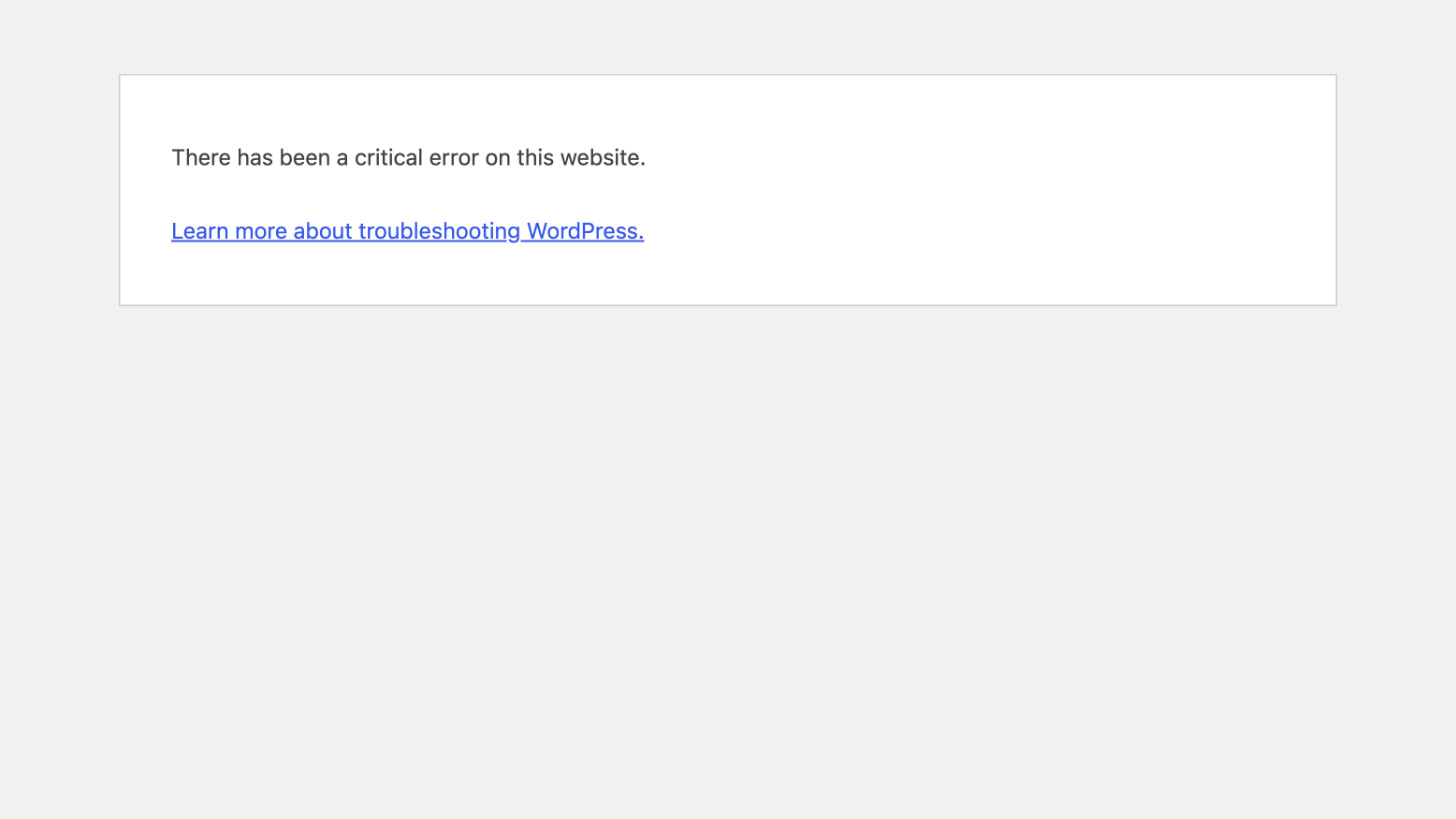
If you are running WordPress 5.2 or a newer version, you have a built-in safety net designed specifically for this scenario. Instead of a completely blank screen, you might see a message stating that your site is having trouble.
"There has been a critical error on your website. Please check your site admin email inbox for instructions." — DreamHost Knowledge Base
When WordPress detects a fatal error caused by a plugin or theme, it triggers a recovery mode. The system automatically sends an email to the administrative email address associated with your WordPress account.
- Check the inbox of your site’s admin email address.
- Look for an email from WordPress with the subject line regarding a critical error.
- Click the unique recovery URL provided in the email.
- This link takes you directly to your WordPress dashboard, bypassing the white screen.
- From the dashboard, navigate to Plugins or Appearance → Themes and deactivate the faulty plugin or switch to a default theme.
If you do not receive the email, check your spam folder, ensure your admin email address is correct in your database, and verify that your hosting provider is not blocking outgoing PHP mail.
How to Disable Plugins via FTP When You Cannot Access wp-admin
Blogs Wizards
If you did not receive a recovery email, or if you are managing a site on an older version of WordPress, you will need to disable your plugins manually.
Warning: Always back up your site via your hosting control panel before editing core files or folders. A quick backup ensures you can restore your site if a file is accidentally deleted or renamed incorrectly.
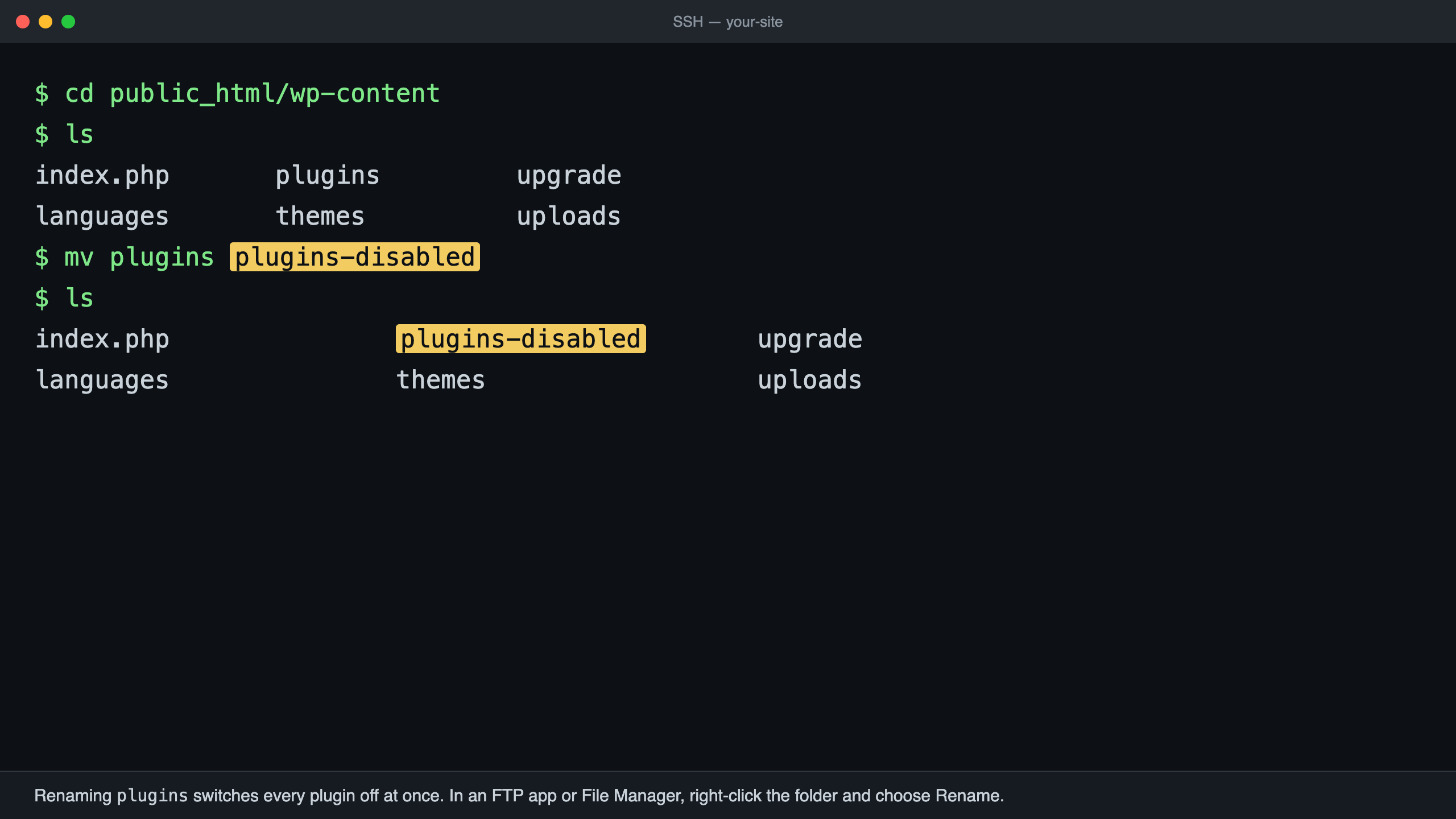
- Log in to your web hosting account and open the File Manager (or connect to your site using an FTP client like FileZilla).
- Navigate to your root WordPress directory, and then open the
wp-contentfolder. - Locate the folder named
plugins. - Right-click the
pluginsfolder and rename it toplugins_old.
Renaming this folder instantly forces WordPress to deactivate all of your plugins, as it can no longer find the active plugin files. Refresh your website in a private or incognito browser window. If your site loads normally, you know a plugin is the cause.
To find the specific plugin causing the issue, rename the folder back to plugins. Then, log in to your WordPress admin area and reactivate your plugins one by one, checking your site after each activation. When the white screen returns, the last plugin you activated is the culprit. Delete it or contact the developer for an update.
How to Switch to a Default Theme via the File Manager
If disabling your plugins did not resolve the white screen, your active theme is likely the source of the conflict. This is especially common if the error appeared immediately after activating a new theme or updating an existing one.
You can force WordPress to fall back to a default core theme (like Twenty Twenty-Four) by renaming your current theme’s folder.
- In your File Manager or FTP client, navigate to
wp-content/themes/. - Find the folder of your currently active theme (e.g.,
my-custom-theme). - Rename the folder to something like
my-custom-theme-backup. - Refresh your website.
If your site loads, the theme was causing the fatal error. You can now log in to your dashboard, navigate to Appearance → Themes, and safely reinstall or update your theme. If you are using a premium theme, reach out to the theme developer with the exact error details.
How to Increase the PHP Memory Limit in wp-config.php
Blogs Wizards
If your site is simply running out of resources, you need to allocate more memory to WordPress. This is a very common fix, especially for sites running heavy page builders, WooCommerce stores, or complex caching plugins.
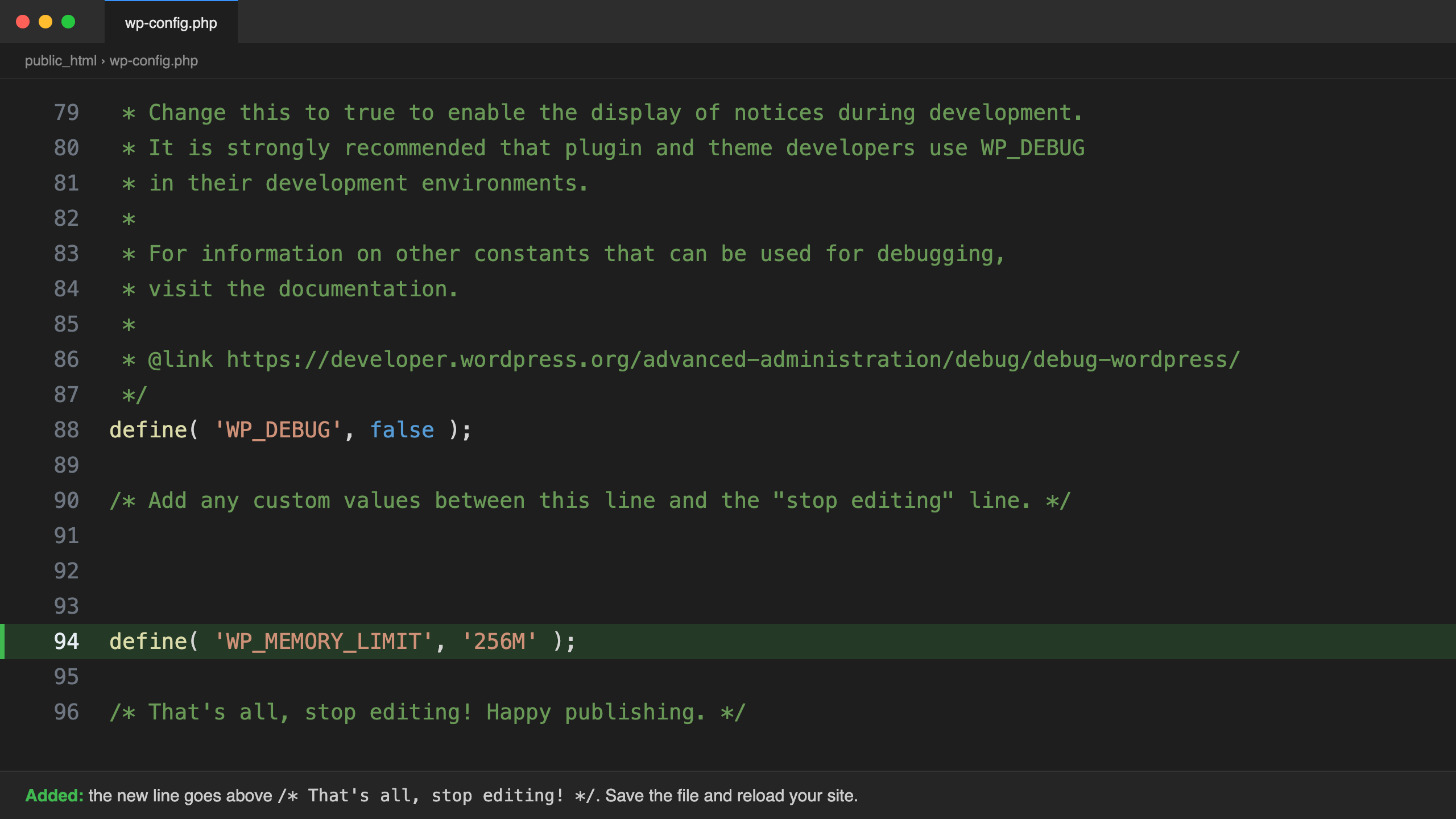
- Open your File Manager and locate the
wp-config.phpfile in your root WordPress directory. - Right-click the file and select Edit.
- Scroll down to the bottom of the file, just before the line that says
/* That's all, stop editing! Happy publishing. */. - Add the following line of code:
define( 'WP_MEMORY_LIMIT', '256M' );
- Save the file and refresh your website.
While some hosts allow you to increase this to 512MB, 256MB is the standard recommended limit for most modern WordPress sites. If your host restricts this change, you may need to contact their support team to increase your PHP memory limit manually.
How to Enable WP_DEBUG to Reveal the Hidden Error
Blogs Wizards
If the screen is still blank after trying the steps above, you need WordPress to tell you exactly what is breaking under the hood. WordPress has a built-in debugging mode that replaces the white screen with a detailed PHP error log.
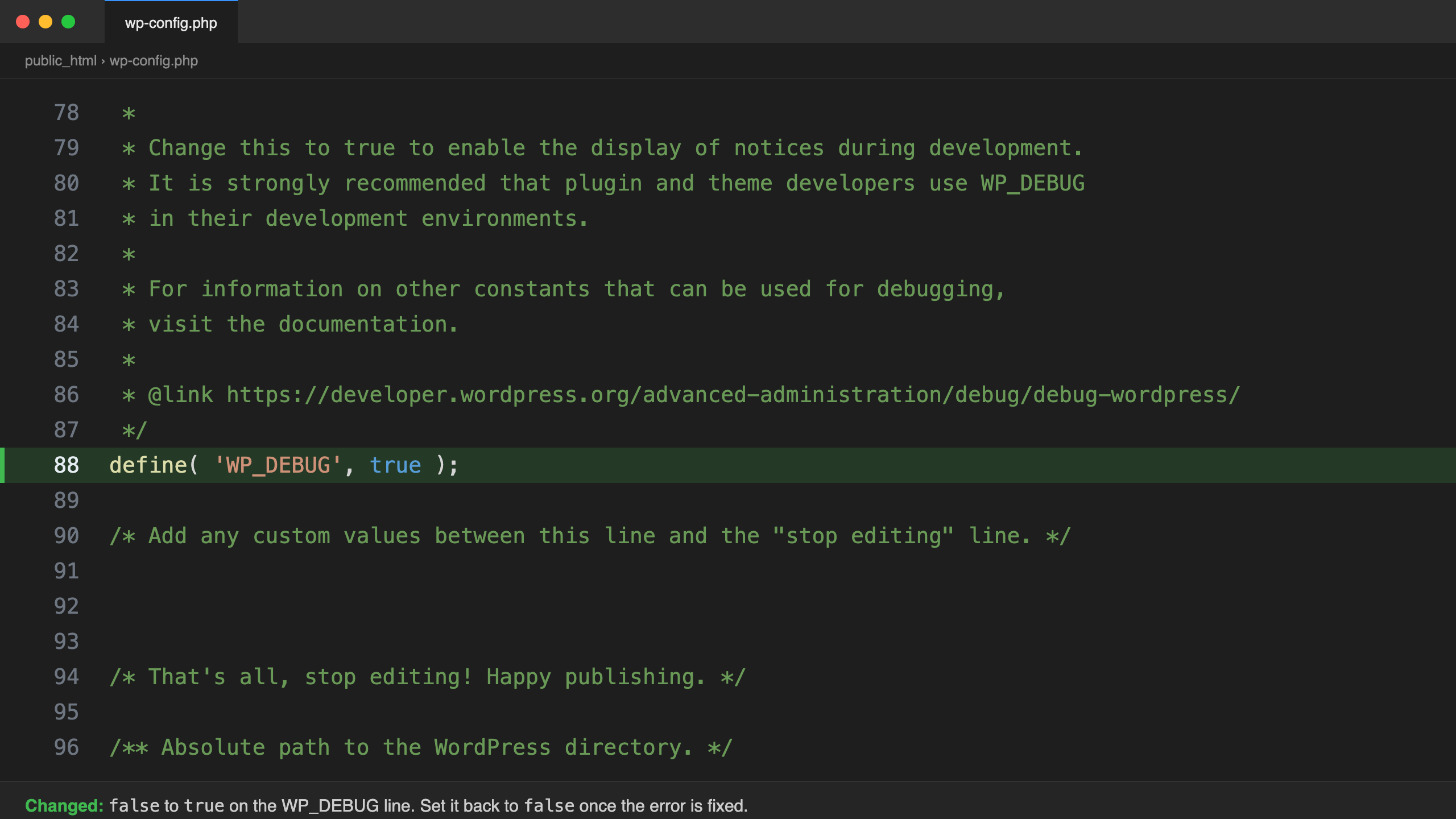
- Open
wp-config.phpin your File Manager. - Find the line that says
define( 'WP_DEBUG', false );. - Change
falsetotrue:
define( 'WP_DEBUG', true );
- Save the file and refresh your site.
Instead of a white screen, you will now see a specific PHP fatal error on the screen, pointing you to the exact file, line number, and plugin or theme causing the failure.
Important: Turn this back to false once you fix the issue. Leaving debug mode enabled on a live site exposes sensitive server paths and code structures to visitors, which is a security risk.
What Should You Do if the White Screen Persists?
Historically, the white screen of death was a notorious roadblock because it offered zero diagnostic information, forcing developers to guess the culprit through a tedious process of elimination. The introduction of WordPress 5.2’s fatal error recovery fundamentally changed this landscape by shifting the burden from blind troubleshooting to guided email alerts.
For site owners, freelancers, and agencies, this evolution means the era of the truly "blind" white screen is mostly over—provided your admin email address is kept up to date in your WordPress settings. However, if you have tried recovery mode, disabled plugins, switched themes, and increased memory, but the white screen persists, the issue likely lies deeper in your server configuration.
When standard fixes fail, check your wp-config.php file for “missing semicolons, quotes, or extra spaces” that might have been introduced during a recent edit. A single stray character in this core file will halt PHP execution immediately. Additionally, clear all server-level caches (like Varnish or Redis) and plugin caches, as a corrupted cached version of your homepage can sometimes serve a blank page even after the underlying code is fixed.
If you have verified your configuration files and cleared your caches, restoring from a recent backup is the fastest and most reliable path forward. This saves you hours of manual code debugging and ensures your site is returned to a known, working state.
Quick Troubleshooting Checklist:
- Check your admin email for a WordPress recovery mode link.
- Rename the
wp-content/pluginsfolder via FTP to disable all plugins. - Rename your active theme folder in
wp-content/themes/to force a default theme. - Increase the memory limit to 256M in
wp-config.php. - Enable
WP_DEBUGto view the exact PHP fatal error. - Verify
wp-config.phpfor syntax errors and clear all server caches. - Restore a full site backup if the error remains unresolved.
Frequently asked questions
How can I fix the WordPress white screen of death?
You can fix the white screen of death by checking your admin email for a WordPress recovery mode link, manually disabling plugins via your hosting file manager, switching to a default theme, or increasing your PHP memory limit in the wp-config.php file.
Why do I get a blank white screen on some websites?
A blank white screen occurs when a PHP fatal error or database error stops the server from rendering the page. Because the script fails before it can generate an error message or visual output, the browser simply displays a blank page.
What causes a white screen of death?
The white screen of death is primarily caused by plugin conflicts, incompatible or corrupted themes, exhausted PHP memory limits, or syntax errors in core files like wp-config.php.
How can I fix the white screen of death without admin access?
If you cannot access the WordPress admin dashboard, you can fix the error by logging into your hosting control panel’s File Manager or using an FTP client. From there, rename the plugins folder inside wp-content to instantly deactivate all plugins, or rename your active theme’s folder to force WordPress to load a default theme.
Related articles
- How to Resolve the 500 Internal Server Error on Your WordPress Site
- Ways to Reinstall WordPress A Guide to 5 Different Methods
