

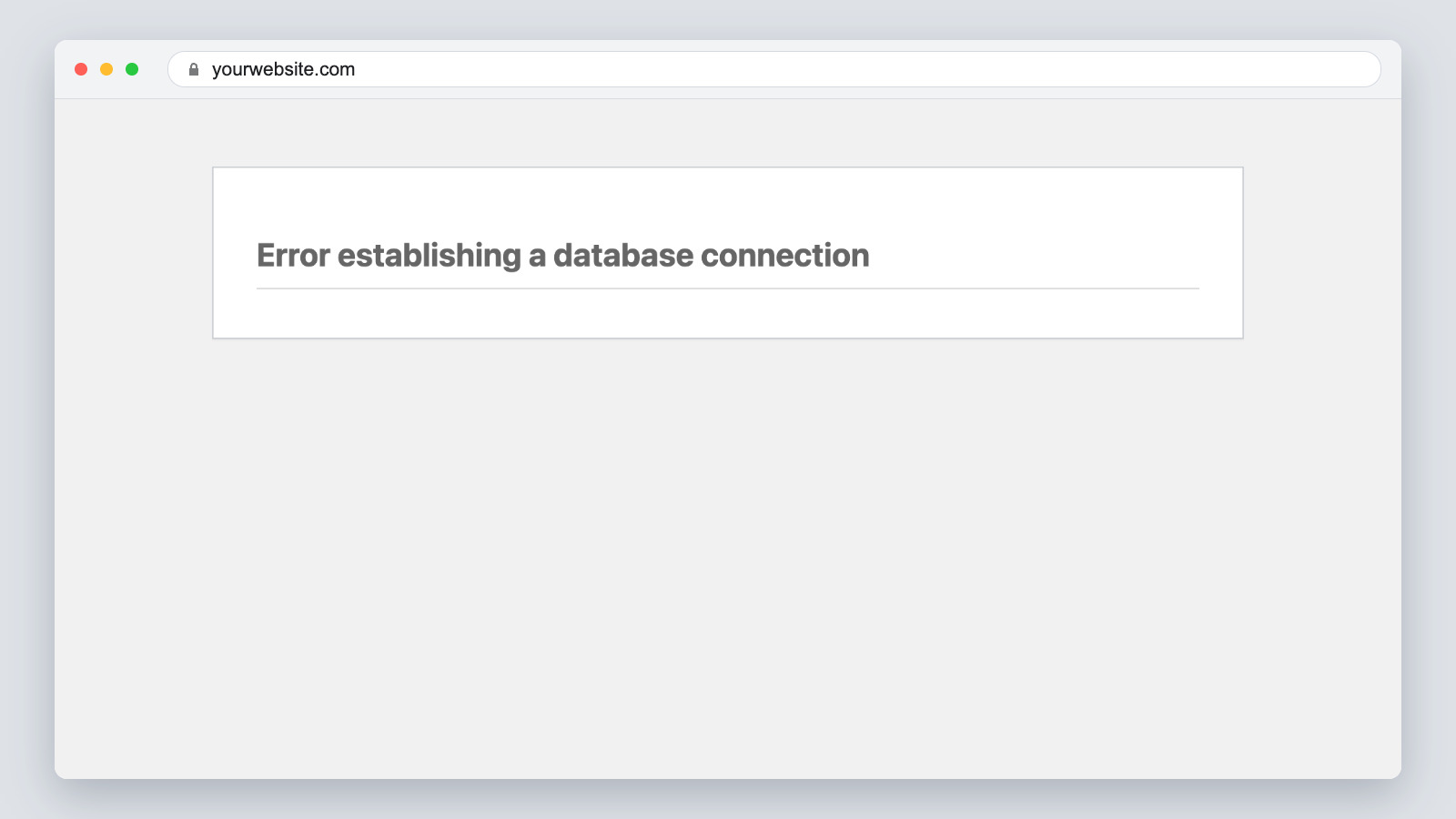
The "error establishing a database connection" message means your WordPress site cannot communicate with its MySQL database, leaving your site completely inaccessible to visitors. In most cases, this happens because the database credentials in your wp-config.php file are incorrect, or your hosting provider’s database server is temporarily down. This guide walks you through the safest, step-by-step checks to get your site back online, starting with the most common fixes and moving to advanced database repairs. These steps apply to all current versions of WordPress (6.0 and newer).
What Does the "Error Establishing a Database Connection" Mean?
Screenshot · Blogs Wizards
To understand the fix, it helps to know how WordPress works behind the scenes. Your site relies on two main components: PHP files (the code) and a MySQL database (the content). Every time someone visits your site, "WordPress uses PHP to run the code and MySQL to fetch content" from your database. This includes your posts, pages, user information, and settings.
If WordPress cannot access that database, it cannot display your site. According to MainWP, this break usually stems from incorrect database credentials, a corrupted database, or an unresponsive database server.
Important: Before editing any core files, always create a full backup of your site or work on a staging environment.
Step 1: Check Your Database Credentials in wp-config.php
Blogs Wizards
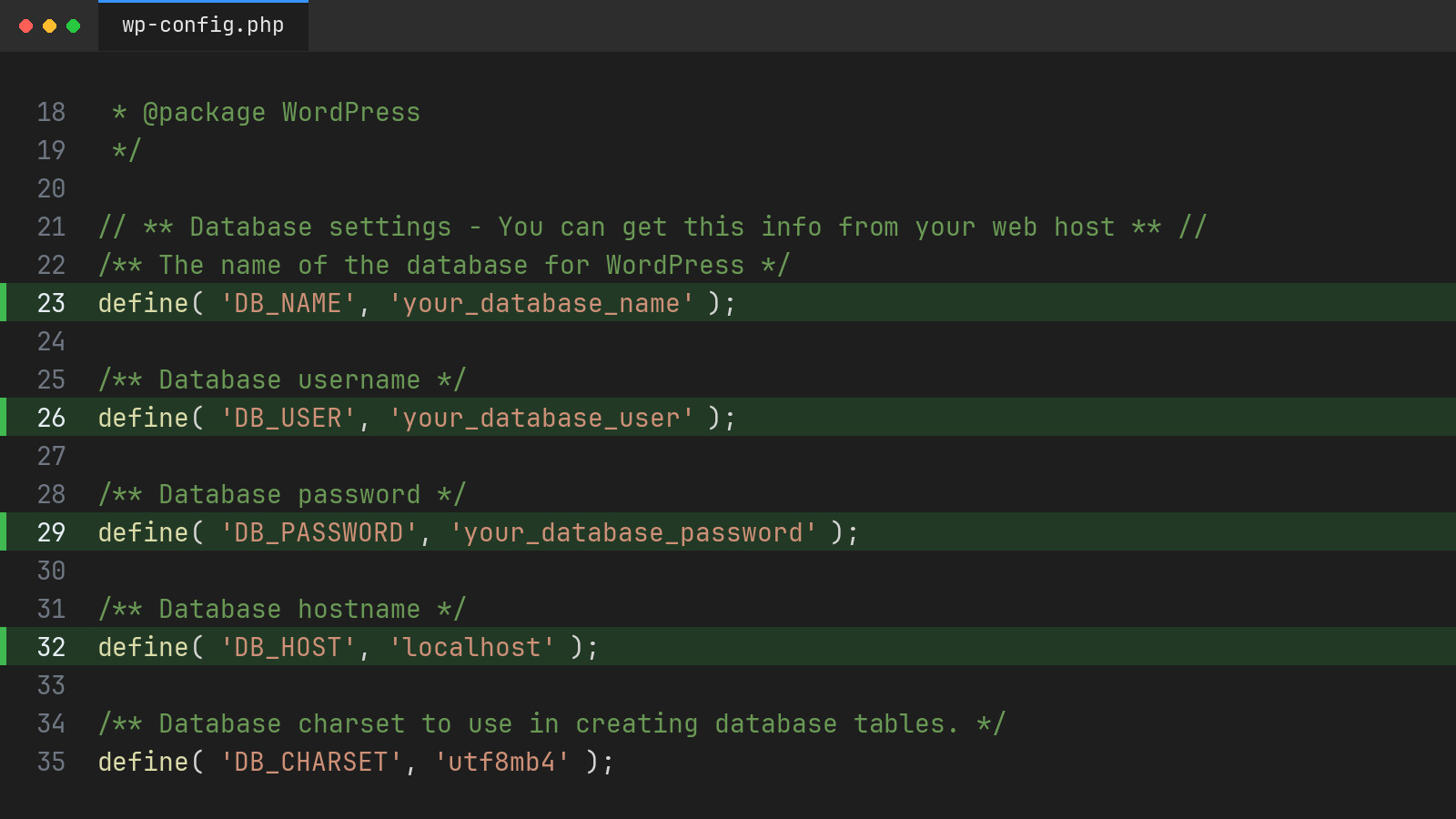
This is the most frequent culprit, especially if you recently migrated your site or changed your hosting plan. Your wp-config.php file stores the connection strings WordPress needs to talk to the database.
- Access your site files via FTP (using a client like FileZilla) or your host’s File Manager.
- Locate the
wp-config.phpfile in your root directory (oftenpublic_html). - Open the file and check these four lines:
define( 'DB_NAME', 'your_database_name' );
define( 'DB_USER', 'your_database_user' );
define( 'DB_PASSWORD', 'your_database_password' );
define( 'DB_HOST', 'localhost' );
Ensure there are no typos, and pay close attention to the syntax. A missing quote or semicolon in DB_PASSWORD will cause a fatal parse error.
A note on database hosts: GoDaddy notes that for standard cPanel web hosting, you should always use localhost for the hostname. However, DreamHost warns to never use localhost for their specific setup; you must use the exact hostname provided in your DreamHost panel.
Step 2: Verify Database User Privileges in Your Hosting Panel
AI illustration · Blogs Wizards
Even if the credentials in wp-config.php are perfectly correct, the database user might lack the permissions required to read the data. NameHero highlights that you need to ensure the database user has full privileges to the database.
If you are using cPanel, follow these steps:
- Log in to cPanel and open MySQL® Databases.
- Scroll down to the "Current Databases" or "Privileged Users" section.
- If your database user is not listed next to your database name, use the "Add User to Database" tool.
- Select the user, select the database, and check the "ALL PRIVILEGES" box before saving.
Step 3: Repair a Corrupted WordPress Database
Screenshot · Blogs Wizards
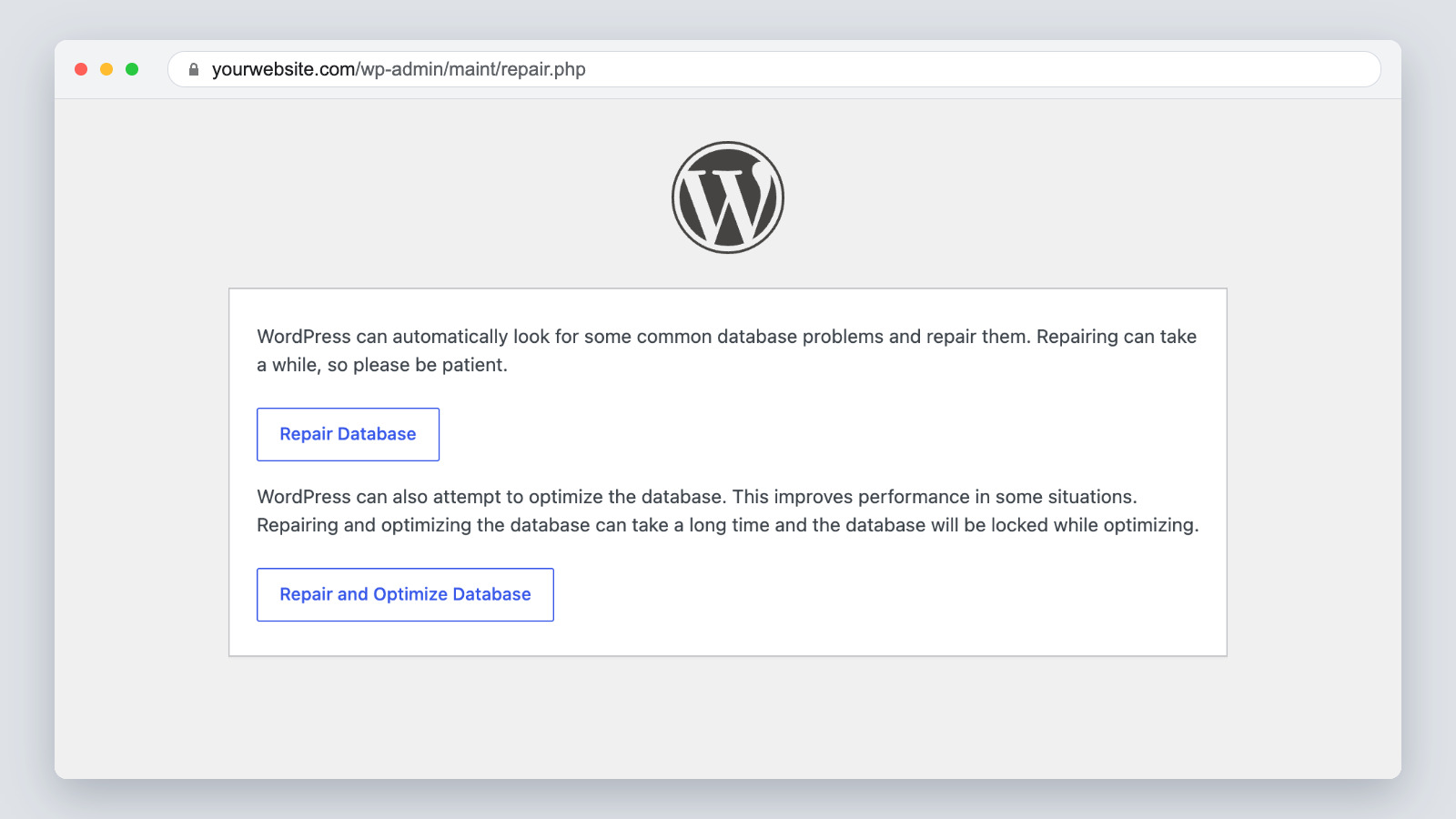
Sometimes the credentials are perfect, but the database tables are corrupted due to a failed plugin update, a server crash, or an interrupted migration. WordPress includes a built-in repair script to fix this.
Warning: This script is publicly accessible when enabled. Only leave it on long enough to run the repair, then remove it immediately to secure your site.
- Open your
wp-config.phpfile. - Add this line just before the "That’s all, stop editing" comment:
define( 'WP_ALLOW_REPAIR', true );
- Save the file and visit
yourwebsite.com/wp-admin/maint/repair.phpin your browser. - Click Repair Database (or "Repair and Optimize Database" for a deeper clean).
- Once the process finishes and your site loads, immediately remove the
WP_ALLOW_REPAIRline fromwp-config.php.
Step 4: Check for Corrupted Core Files or Security Issues
Blogs Wizards
If the database is fine, the PHP files connecting to it might be compromised or corrupted. DreamHost notes that if your wp-config.php contains suspicious encoded strings, your site has likely been compromised.
"Base64 hacks leave a backdoor that hackers can use repeatedly on your site." — DreamHost
To fix corrupted core files without losing your content:
- Download a fresh copy of WordPress from WordPress.org.
- Extract the files on your computer.
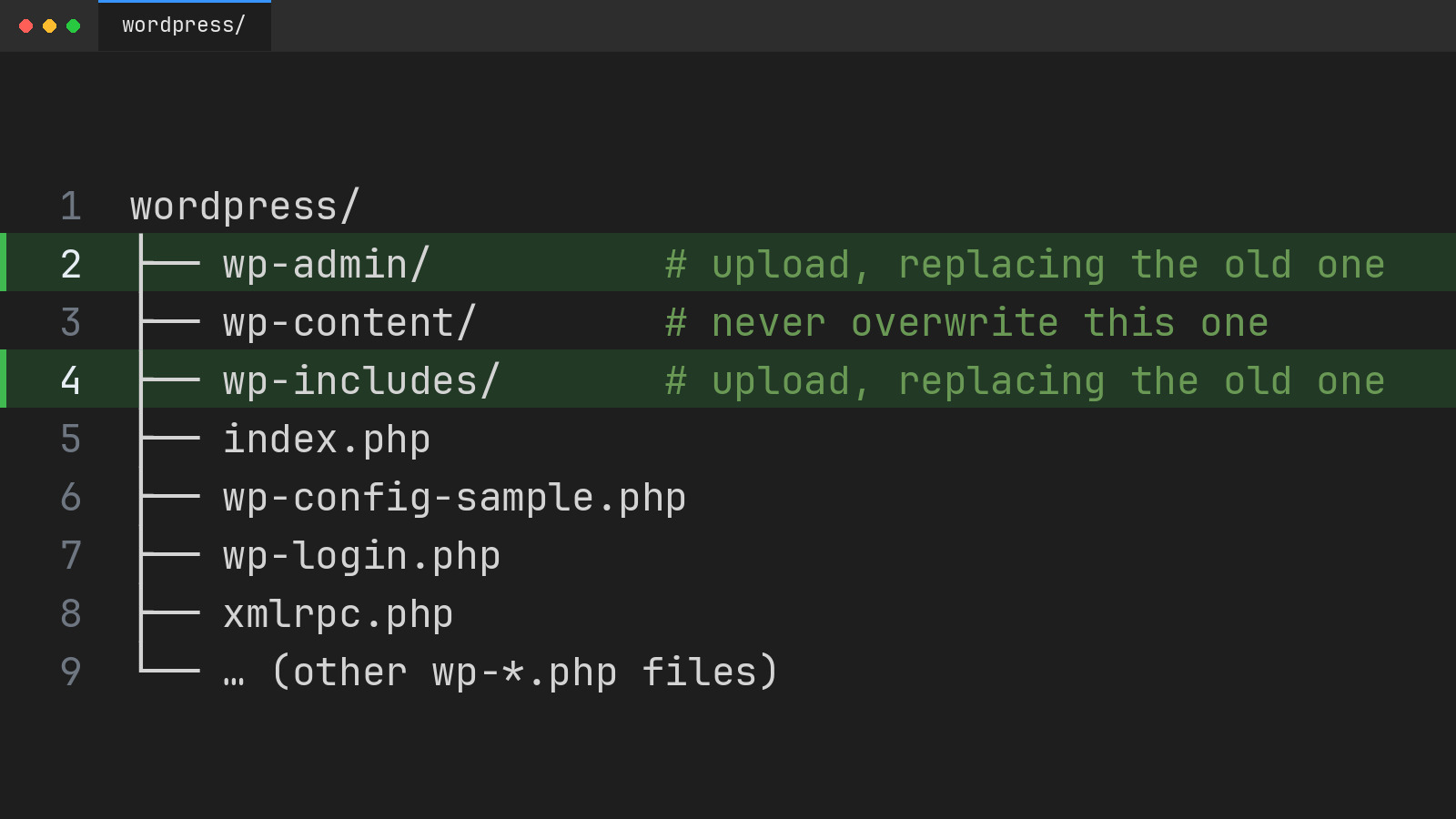
- Upload the
wp-adminandwp-includesfolders via FTP, overwriting the existing ones on your server. - Never overwrite your
wp-contentfolder or yourwp-config.phpfile during this process, as that is where your themes, plugins, and database credentials live.
Step 5: Contact Your Web Host About Server Status
If you have verified your credentials, checked privileges, and repaired the database, the issue is likely on the server level. As WordPress.org support forums indicate, this error often means “contact with the database server at localhost could not be established” because the host’s database server is down.
Reach out to your hosting support to check if the MySQL service is running. Additionally, ask if your account has hit resource limits. NameHero points out that if your account exceeds limits like 100,000 Inodes or 20GB of disk space, automated backups and database processes can fail, triggering connection errors.
Quick-Reference Troubleshooting Checklist
Use this synthesis table to quickly identify your specific issue and the corresponding fix based on the symptoms you are seeing.
| Symptom / Error Message | Most Likely Cause | Immediate Action |
|---|---|---|
| Blank white screen with "Error establishing a database connection" | Incorrect wp-config.php credentials |
Verify DB name, user, password, and host. |
| "Error establishing a database connection" after site migration | Wrong DB_HOST or missing DB privileges |
Update host URL; reassign user privileges in cPanel. |
| Database error on specific pages only, but admin loads | Corrupted database tables | Run the WP_ALLOW_REPAIR script. |
Syntax error mentioning DB_HOST or DB_PASSWORD |
Typo in wp-config.php |
Check for missing quotes, commas, or semicolons. |
| Error persists after checking all files and repairing DB | MySQL server is down or overloaded | Contact hosting support to check server status and resource limits. |
Frequently asked questions
What does error establishing a database connection mean?
It means your WordPress PHP files cannot communicate with the MySQL database that stores your site’s content. Without this connection, WordPress cannot load your posts, pages, or settings, resulting in a complete site outage for visitors.
Why can’t I connect to my MySQL database on localhost?
If localhost is failing, your hosting environment might require a specific database hostname (like a dedicated IP or a specific server URL) instead of the default localhost. Alternatively, the MySQL service itself might be down, unresponsive, or overloaded on your server.
How to establish a database connection?
You establish the connection by ensuring your wp-config.php file contains the exact database name, username, password, and host provided by your web host, and that the database user has been granted full privileges to access that specific database in your hosting control panel.
