

Securing a WordPress site is not about achieving a perfectly impenetrable system, but rather about risk reduction through layered defenses. By combining strong access controls, regular software updates, and server-level hardening, you remove the vulnerabilities that automated bots and hackers actively scan for. This guide walks you through 15 practical steps to lock down your WordPress installation, from basic password hygiene to advanced file permissions.
"Fundamentally, security is not about perfectly secure systems. Such a thing might well be impractical, or impossible to find and/or maintain. What security is though is risk reduction, not risk elimination." — WordPress.org Advanced Administration Handbook
Why WordPress Security Requires a Layered Approach
WordPress currently powers over 40% of all websites, making it a massive target for automated bots and opportunistic hackers. According to Wordfence, an average site faces nearly 56 requests probing for vulnerabilities every 24 hours. These attempts specifically target weak passwords, outdated plugins, and exposed configuration files.
The scale of the ecosystem means new threats emerge constantly. In 2025 alone, researchers uncovered 11,334 new vulnerabilities in the WordPress environment, with the most critical flaws exploited within hours of disclosure. As Ben Everard, Director & Technical Lead at The Idea Bureau, notes, "Website owners should be cautious of security with WordPress, not least because it’s one of the most popular content platforms on the internet."
Security is a shared responsibility. Your web host secures the physical server and network infrastructure, but you are responsible for the application layer—your themes, plugins, content, and user accounts. Relying on a single security plugin is insufficient; you must apply multiple layers to ensure that if one defense fails, another catches the threat.
How to Harden Access and Authentication
Blogs Wizards
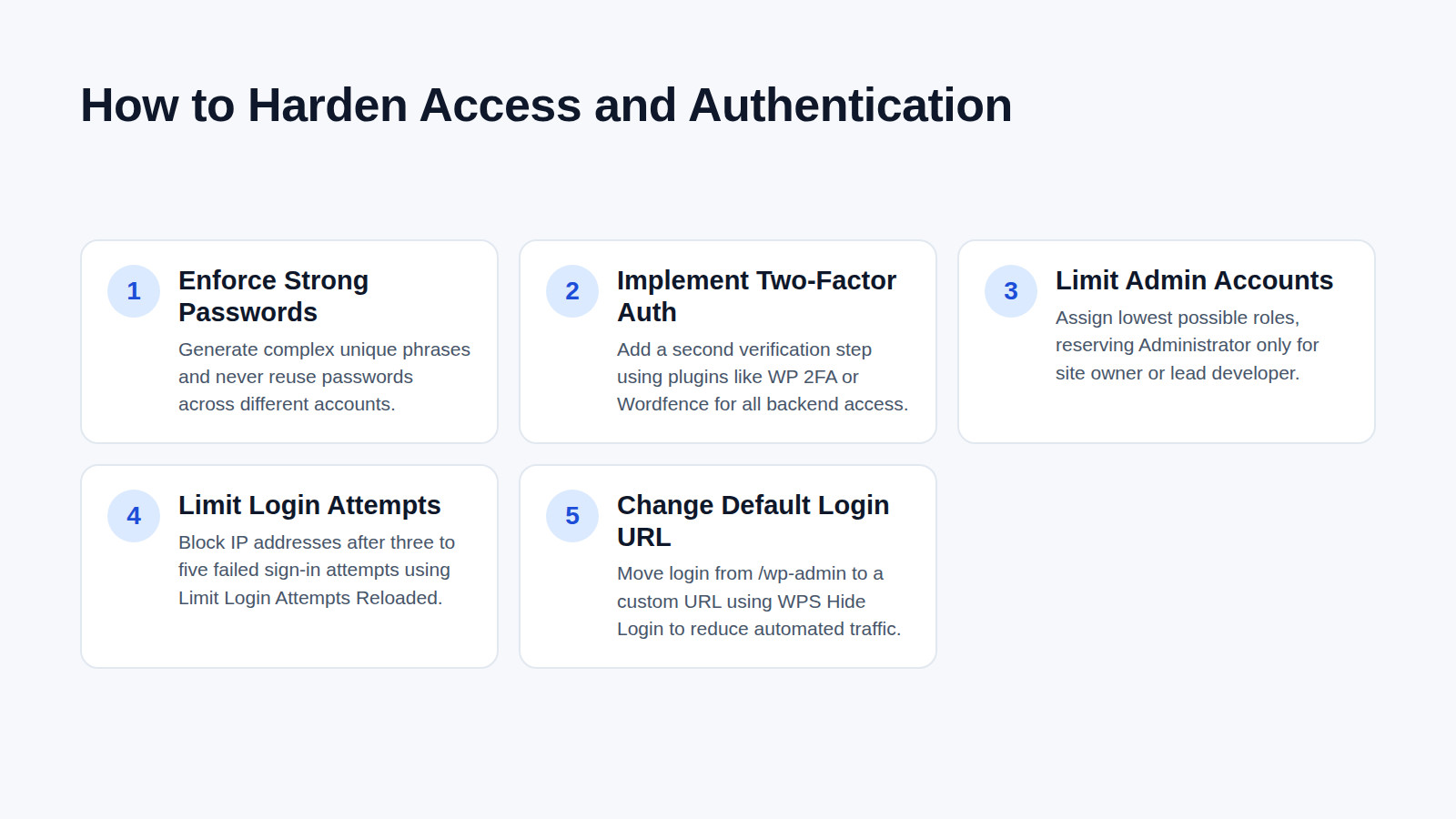
XML-RPC is a significantly more dangerous brute force vector than the login page. Securing how users access your dashboard is your first line of defense against brute force attacks.
1. Enforce Strong Passwords
Weak passwords are the easiest way for attackers to gain entry. Go to Users → Profile in your dashboard and use the "Set New Password" tool to generate a complex, unique phrase. Never reuse passwords across different accounts, and require all contributors to do the same.
2. Implement Two-Factor Authentication (2FA)
Passwords can be stolen via phishing or data breaches. Adding 2FA requires a second verification step, typically a code from an authenticator app. You can enable this using a dedicated plugin like WP 2FA or through comprehensive security suites like Wordfence. Apply this to all accounts with backend access.
3. Limit Admin Accounts (Least Privilege)
Only the site owner or lead developer needs an Administrator role. Go to Users → Add New and assign the lowest possible role for your team. Use the "Editor" role for content managers and "Author" for writers. This limits the damage if a lower-level account is compromised.
4. Limit Login Attempts
Brute force attacks rely on trying thousands of password combinations. Use a plugin like Limit Login Attempts Reloaded to block an IP address after three to five failed sign-in attempts, effectively stopping automated guessing scripts in their tracks.
5. Change the Default Login URL
/wp-admin is the WP Admin dashboard (administration interface), not the login page. Moving it to a custom URL (e.g., yourdomain.com/my-secure-portal) hides it from basic bots. Plugins like WPS Hide Login handle this easily. While this won’t stop a determined human hacker, it drastically reduces the volume of automated traffic hitting your server.
How to Keep Your Software and Backups Bulletproof
Outdated software is the leading cause of WordPress infections. When developers release updates, they are often patching known security holes.
6. Update Core, Themes, and Plugins
Navigate to Dashboard → Updates regularly. WordPress core updates should be applied immediately. For plugins and themes, enable auto-updates for minor releases, but test major updates on a staging site first to ensure they don’t break your layout.
7. Delete Unused Themes and Plugins
Inactive plugins and themes still sit on your server and can be exploited if they contain unpatched vulnerabilities. Go to Plugins → Installed Plugins and Appearance → Themes, then permanently delete anything you are not actively using.
8. Set Up Regular Offsite Backups
If your site is compromised, a clean backup is your fastest route to recovery. Use a plugin like UpdraftPlus or your host’s native backup tool to schedule daily or weekly backups. Crucially, ensure these backups are stored offsite (such as Amazon S3 or Google Drive) and test a restoration process at least once a year to verify the files actually work.
How to Secure Your Server and Files
Blogs Wizards
Hardening your server environment restricts what malicious scripts can do if they manage to bypass your application-level defenses.
Warning: Always back up your site before editing core configuration files or server rules. A single typo can take your site offline.
9. Implement HTTPS Encryption
An SSL/TLS certificate encrypts data transmitted between your site and your visitors, protecting login credentials and personal data. Install an SSL certificate via your host, then go to Settings → General and update both the WordPress Address and Site Address URLs from http:// to https://.
10. Set Correct File Permissions
Incorrect file permissions can allow hackers to modify your core files. Using your hosting control panel’s File Manager or an FTP client, ensure your directories are set to 755 or 750, files 644 or 640, and wp-config.php should be 440 or 400.
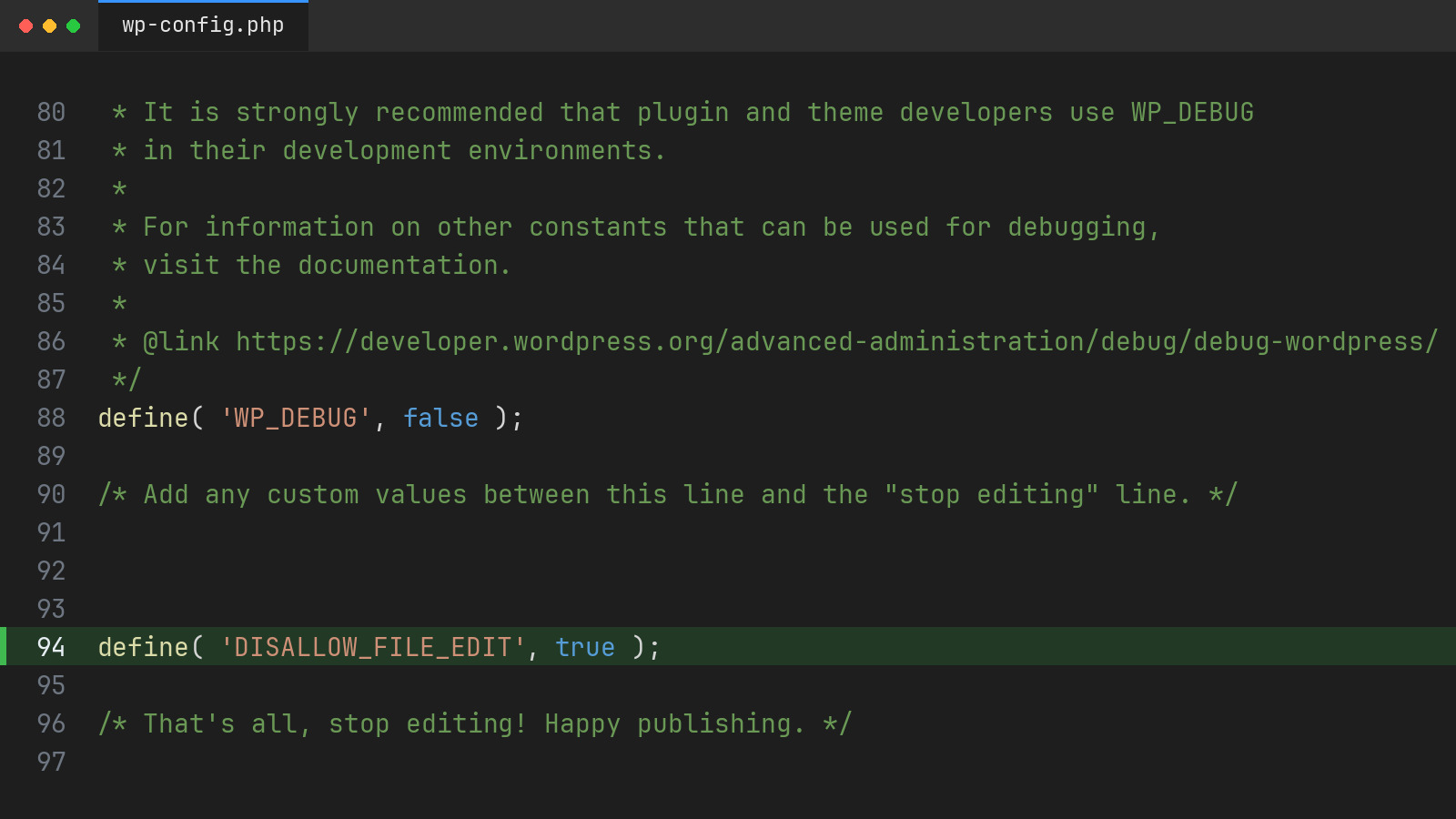
11. Disable the Built-in File Editor
WordPress includes a theme and plugin file editor in the dashboard. If an attacker gains admin access, they can use this to inject malicious code. Disable it by adding the following line to your wp-config.php file (applies to WordPress 5.0 and later):
define( 'DISALLOW_FILE_EDIT', true );
12. Protect the wp-config.php File
Your wp-config.php file contains your database credentials. You can block direct web access to it by adding the following rules to your .htaccess file, located in your root directory:
<Files wp-config.php>
order allow,deny
deny from all
</Files>
How to Block Attacks at the Network Level
Blogs Wizards
A Web Application Firewall (WAF) acts as a shield between your website and the public internet, filtering out malicious traffic before it reaches your server.
13. Install a Web Application Firewall
Plugins like Wordfence or cloud-based services like Cloudflare inspect incoming traffic and block known malicious IP addresses, SQL injection attempts, and cross-site scripting (XSS) payloads. Configure the WAF to block bad bots and enable the premium malware scanning signatures if your budget allows.
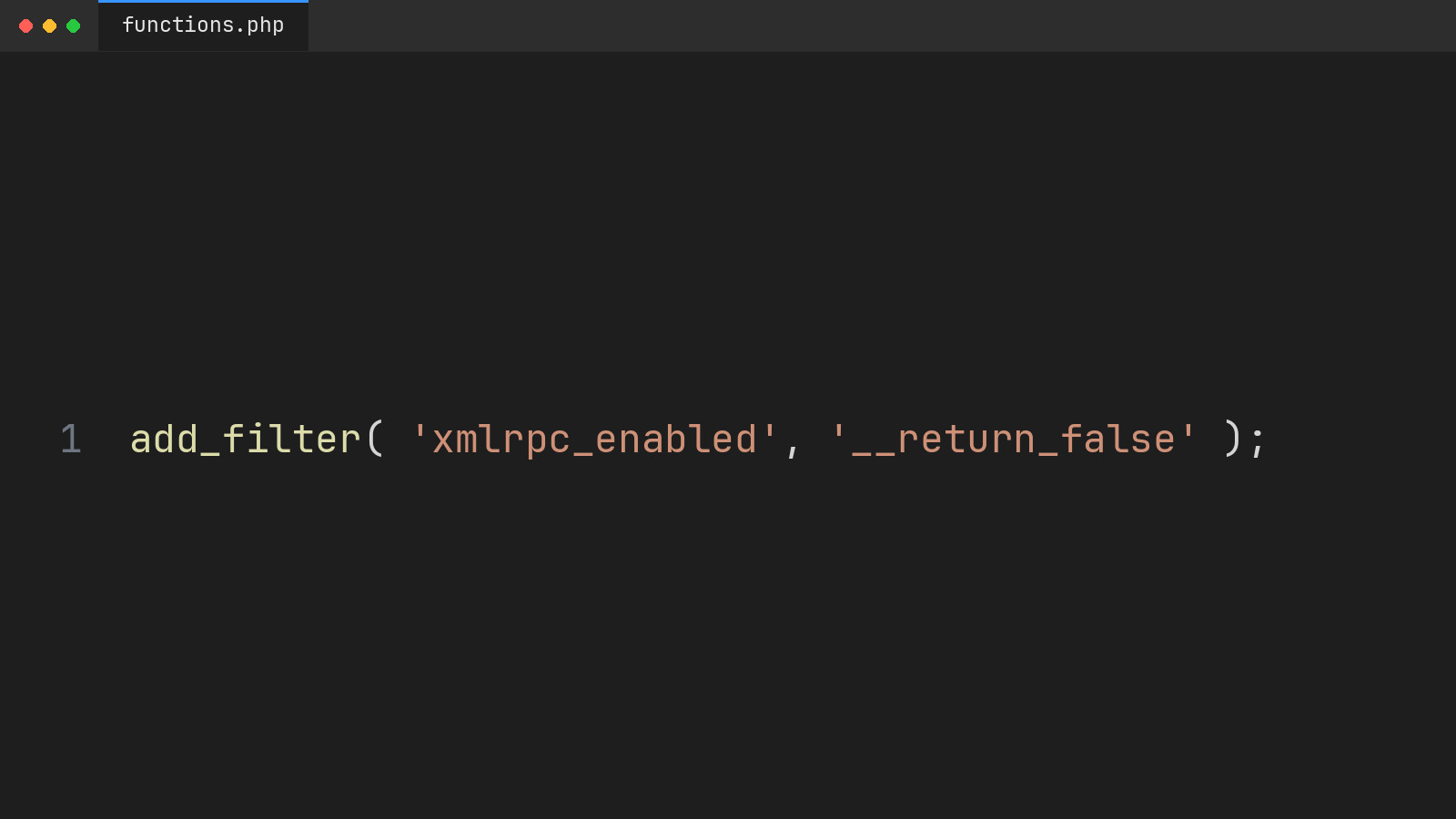
14. Disable XML-RPC if Unused
XML-RPC is an older API used for remote publishing. Today, it is rarely needed but frequently exploited for brute force amplification and DDoS attacks. If you do not use the WordPress mobile app or Jetpack, disable it by adding this filter to your theme’s functions.php file or a code snippets plugin:
add_filter( 'xmlrpc_enabled', '__return_false' );
15. Add CAPTCHA to Forms
Automated bots constantly spam contact forms and attempt to create fake user accounts. Implementing a CAPTCHA solution like Google reCAPTCHA v3 or hCaptcha on your login, registration, and contact forms ensures that only human users can submit data, drastically reducing spam and server load.
What to Watch For: The Reality of Open-Source Security
When evaluating platform security, it is useful to compare open-source WordPress to proprietary builders like Shopify or Wix. With proprietary platforms, the provider manages the infrastructure and patches, removing the burden from you. However, you sacrifice control and still face platform-level risks. For instance, a 2016 vulnerability on Wix put millions of sites at risk.
The primary advantage of WordPress is ownership; the trade-off is the speed of response. Because the ecosystem is vast, vulnerabilities in third-party plugins are discovered frequently. The critical metric to watch is your patching cadence. When a high-severity vulnerability is disclosed, the window to exploit it is often measured in hours, not days. Relying on a single security plugin is insufficient if core software remains outdated. The most successful site owners treat security as an ongoing operational habit rather than a one-time setup.
Quick-Reference Security Checklist
Use this summary to audit your current setup:
- Passwords: All users have strong, unique passwords.
- 2FA: Enabled for all Administrator and Editor accounts.
- Roles: Admin accounts limited to essential personnel only.
- Login Limits: Failed login attempts restricted via plugin.
- Login URL: Default
/wp-adminpath changed. - Updates: Core, themes, and plugins are fully updated.
- Cleanup: Unused themes and plugins deleted.
- Backups: Daily/weekly offsite backups configured and tested.
- HTTPS: SSL certificate active and enforced site-wide.
- Permissions: Files set to 644, folders to 755.
- File Editor: Disabled in
wp-config.php. - Config Protection:
wp-config.phpblocked via.htaccess. - Firewall: WAF plugin or cloud service active.
- XML-RPC: Disabled if not actively used.
- Forms: CAPTCHA added to all public-facing forms.
Frequently asked questions
How can I make my WordPress site more secure?
You can make your site more secure by applying layered defenses: keeping WordPress core and plugins updated, enforcing strong passwords with two-factor authentication, limiting login attempts, installing a web application firewall, and setting correct file permissions on your server.
How secure are WordPress sites?
WordPress core software is highly secure and rigorously tested, but the platform’s popularity makes it a frequent target for automated bots. Overall security depends entirely on the site owner’s practices; a well-maintained site with updated plugins and strong access controls is highly secure, while an neglected site is very vulnerable.
Can you password protect a WordPress website?
Yes, you can password protect specific pages or posts natively by editing the page and changing the Visibility setting to "Password Protected" in the document sidebar. To protect the entire site or restrict backend access, you will need a membership or restriction plugin.
How to tell if WordPress has been hacked?
Common signs of a hacked WordPress site include unexpected redirects to malicious websites, new admin accounts you did not create, a sudden drop in traffic, warnings from your browser or Google Safe Browsing about malware, or unfamiliar code injected into your theme files.
Reviewed by Shahid Anwer · Editorial standards
