

To speed up a WordPress site, you must first measure your current performance using Google PageSpeed Insights, then systematically address your hosting environment, caching setup, image sizes, plugin count, theme weight, and content delivery network (CDN). This guide walks you through the exact steps to identify bottlenecks and apply proven fixes to improve your Core Web Vitals and overall user experience.
How Do You Measure Your Current WordPress Speed?
Before changing any settings or installing new tools, you need an accurate baseline of your site’s current performance. PFLB explains that Google PageSpeed Insights provides both lab results and field data, giving you a complete picture of simulated technical bottlenecks and real-world visitor experiences.
You should pay close attention to Core Web Vitals, which are specific metrics Google uses to evaluate user experience. According to Google, the Core Web Vitals are Largest Contentful Paint (LCP), Interaction to Next Paint (INP) and Cumulative Layout Shift (CLS): how fast the main content appears, how quickly the page responds when someone clicks or taps, and how much the layout jumps while it loads. These metrics directly impact your search rankings, making them the most important numbers to track before and after you make optimization changes.
Why Is Your WordPress Site Running Slowly?
Blogs Wizards
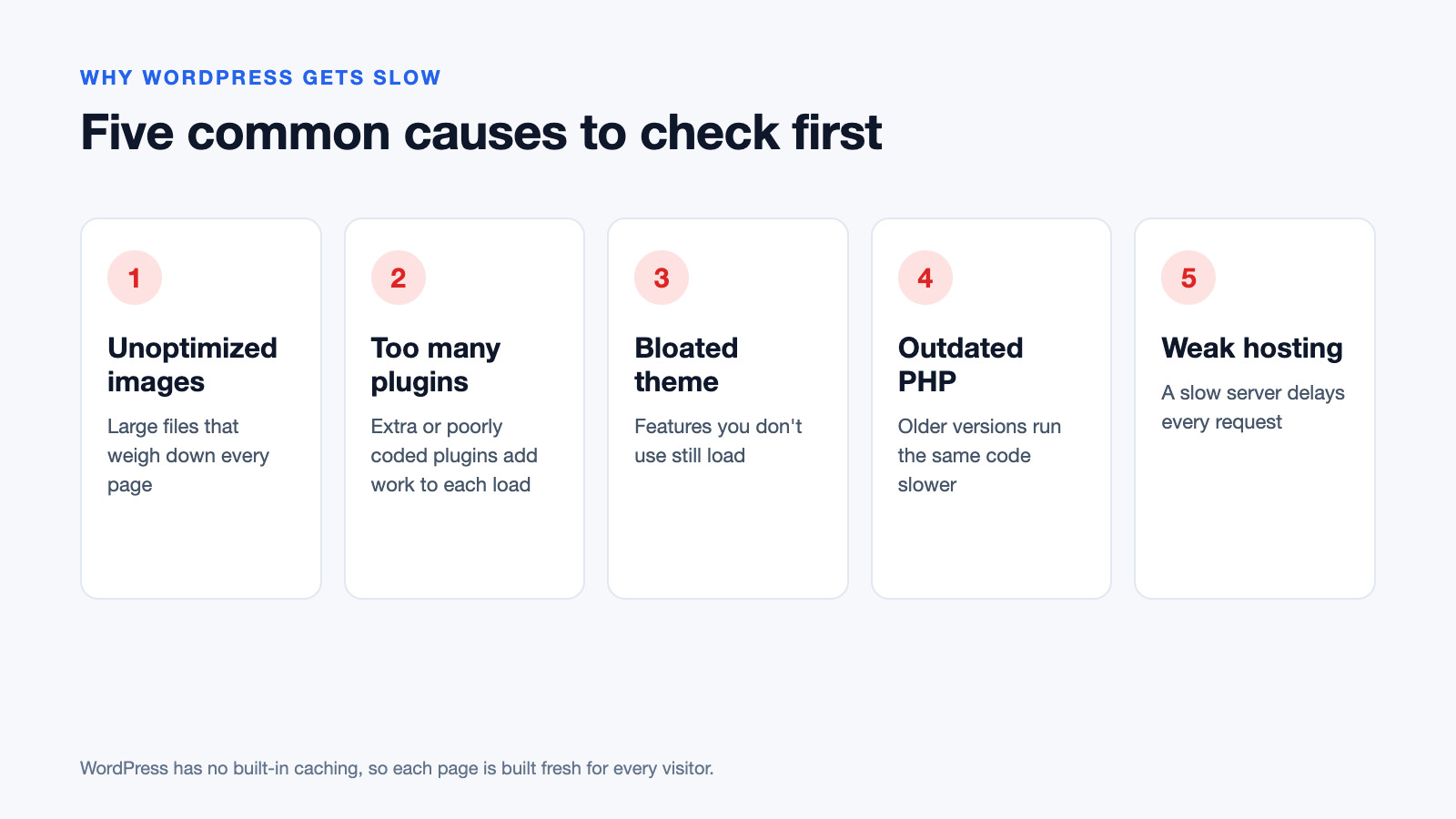
Understanding the root cause of your slow site prevents you from applying the wrong fixes. GoDaddy notes that WordPress lacks any built-in caching, meaning the server must generate every page dynamically from scratch for each visitor. This architecture is highly flexible but inherently resource-heavy.
However, the platform itself is rarely the sole culprit. CodeCaste argues that WordPress itself is not slow, but rather the poor decisions layered on top of it. Common causes include unoptimized images, excessive or poorly coded plugins, feature-bloated themes, outdated PHP versions, and inadequate hosting infrastructure. Identifying which of these layers is causing the drag is the key to fixing it.
What Are the Best Steps to Speed Up a WordPress Site?
Codeable outlines 10 WordPress speed optimization steps that deliver real results. Here is the practical checklist to address the most common bottlenecks, in the order you should tackle them.
- Upgrade to High-Performance Hosting: Cloudways emphasizes that “speed optimization starts with choosing the right hosting” environment. Shared hosting often lacks the dedicated resources needed for fast PHP execution. Moving to managed WordPress hosting or cloud infrastructure fixes slow server response times at the foundational level.
- Implement Multi-Layered Caching: WebsiteSpeedy explains that caching skips these dynamic stages by supplying static HTML versions of your pages. This eliminates the need for the server to process PHP and query the MySQL database on every visit, drastically reducing server load.
- Optimize and Compress Images: Large media files are the heaviest payload on most sites. You must compress images, resize them to match their display dimensions, and serve them in next-generation formats like WebP or AVIF.
- Audit and Reduce Plugins: Navigate to Plugins → Installed Plugins in your dashboard. Deactivate and delete any plugins you do not actively use. Every active plugin adds PHP execution time and potential database queries.
- Switch to a Lightweight Theme: Avoid themes packed with unused demo content and heavy page builders if you only need a simple layout. A lightweight theme minimizes the CSS and JavaScript loaded on every page.
- Deploy a Content Delivery Network (CDN): A CDN stores copies of your static assets on servers around the world, so visitors download them from a server close to them. Cloudflare’s free plan includes its CDN, and paid add-ons such as Argo Smart Routing can speed up the route traffic takes across its network.
Which WordPress Caching Plugin Should You Choose?
Blogs Wizards
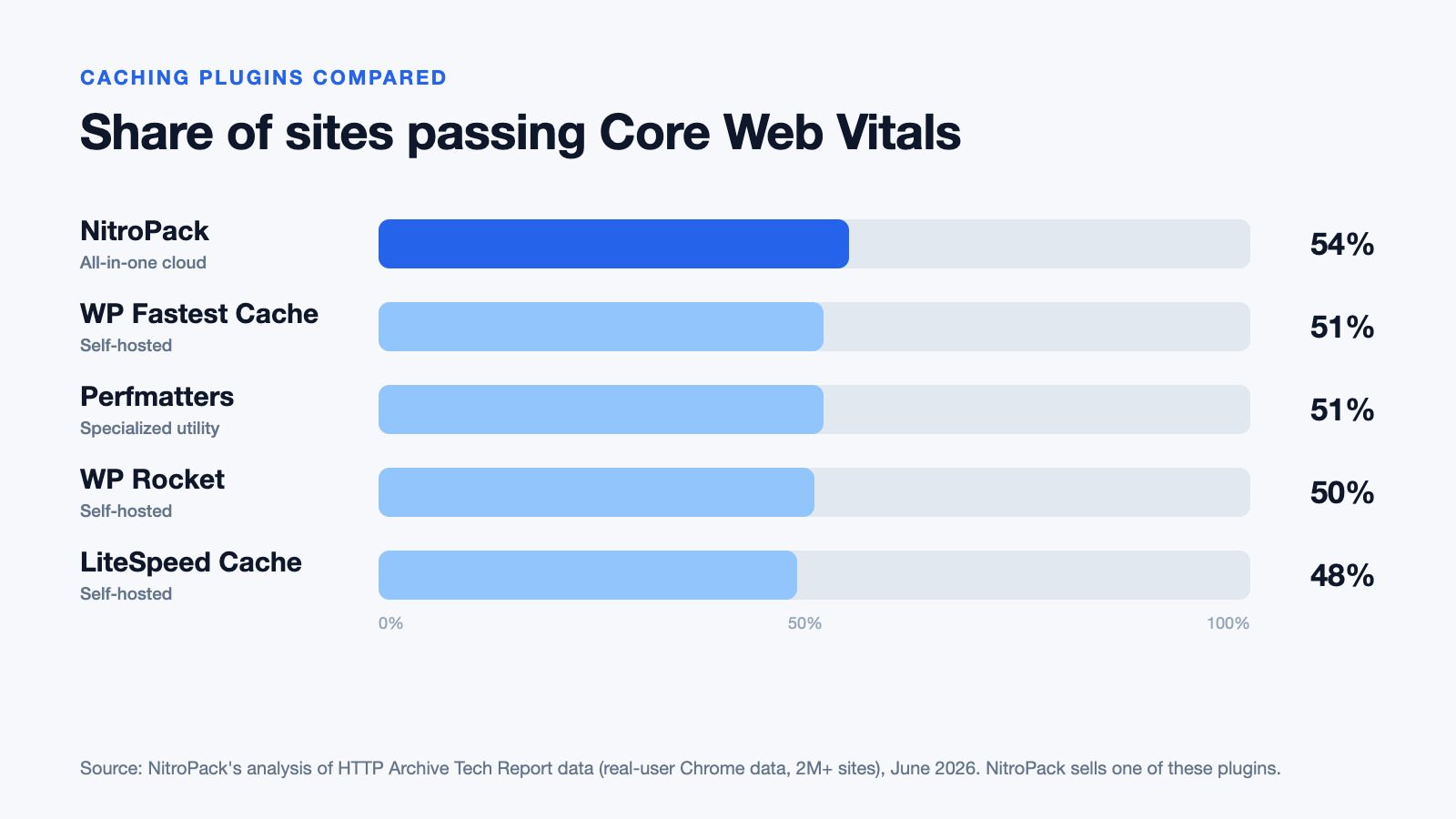
Because WordPress requires external tools for caching, choosing the right plugin is critical. One useful yardstick is the share of real websites using each plugin that pass Google’s Core Web Vitals assessment. NitroPack’s plugin comparison, which draws on HTTP Archive Tech Report data from more than 2 million sites, puts the five most popular options within six points of each other, from 48% to 54%. NitroPack sells one of these plugins and ranks itself first, so treat the order with some caution. The bigger lesson is that no caching plugin gets most sites through on its own: hosting, images and theme still decide the rest.
Here is how the top options compare based on real-world data and feature sets:
| Plugin | Type | Sites passing Core Web Vitals* | Best For |
|---|---|---|---|
| NitroPack | All-in-one cloud | 54% | Users wanting automated, off-server optimization |
| WP Fastest Cache | Self-hosted | 51% | Beginners needing a simple, free self-hosted option |
| Perfmatters | Specialized utility | 51% | Advanced users wanting granular asset control |
| WP Rocket | Self-hosted | 50% | Users wanting a premium, hands-off self-hosted setup |
| LiteSpeed Cache | Self-hosted | 48% | Sites hosted on LiteSpeed web servers |
*Share of sites using each plugin that pass Google’s Core Web Vitals assessment. Source: NitroPack’s analysis of HTTP Archive Tech Report data, published June 2026.
For those using self-hosted options, the official WordPress documentation recommends plugins like W3 Total Cache and WP Super Cache to serve static files efficiently. BrowserStack lists “page and object caching for faster load times” as key features to look for when evaluating these tools. If you prefer a premium self-hosted route, WP Rocket claims its plugin makes your site up to 84% faster out of the box, and it is currently trusted by over 5.5 million websites.
How Do You Optimize Images Without Losing Quality?
Images are often the largest files on a webpage, making them the primary target for reducing page weight. Imagify demonstrates that an image resized, compressed, and converted to AVIF can drop from 1.3 MB to just 40 KB, achieving a 97% reduction in file size with no visible loss in quality.
To implement this, use an image optimization plugin that handles three tasks automatically: lossy or lossless compression, resizing images to prevent serving a 4000px wide image in a 800px wide container, and converting files to WebP or AVIF. Additionally, enable lazy loading so that images further down the page only load when the user scrolls to them, which significantly improves the initial page load time.
How Do These Speed Optimizations Interact?
Blogs Wizards
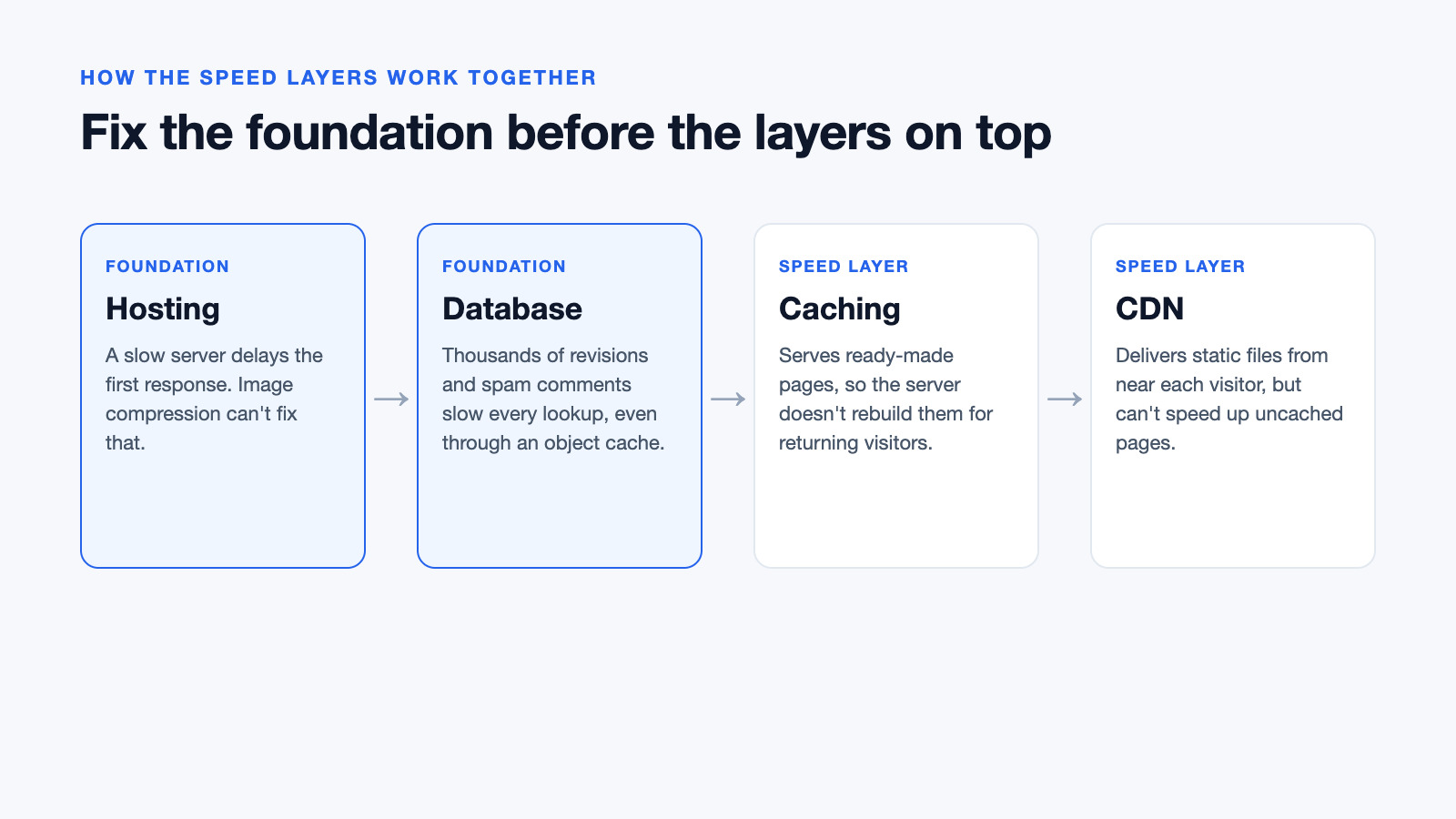
A common mistake site owners make is treating speed optimizations as a list of independent tasks rather than a connected system. Understanding how these layers interact is crucial for setting realistic expectations and troubleshooting issues.
Think of your website’s performance as a waterfall. Your hosting environment is the source; if the server is slow to process PHP, no amount of image compression will fix the initial server response time. Caching sits next in the flow, bypassing the server processing entirely for returning visitors. However, if your database is bloated with thousands of post revisions and spam comments, your object cache will still struggle to retrieve data quickly. Finally, a CDN distributes your static files globally, but it cannot speed up the dynamic, uncached elements of your site if your origin server is overwhelmed. You must address the foundation (hosting and database) before relying on the distribution layer (CDN and caching).
Quick-Reference Speed Optimization Checklist
Use this summary table to track your progress as you work through your site’s performance audit.
| Optimization Layer | Action Item | What It Fixes |
|---|---|---|
| Measurement | Run Google PageSpeed Insights | Establishes baseline Core Web Vitals |
| Hosting | Upgrade to managed or cloud hosting | Fixes slow server response times (TTFB) |
| Caching | Install and configure a caching plugin | Eliminates dynamic PHP generation per visit |
| Images | Compress, resize, and convert to WebP/AVIF | Reduces total page weight and download time |
| Plugins | Deactivate and delete unused plugins | Reduces code bloat and database queries |
| Theme | Switch to a lightweight, well-coded theme | Minimizes unnecessary CSS and JS loading |
| CDN | Connect site to a global Content Delivery Network | Fixes geographic latency for static assets |
Frequently asked questions
How to make a WordPress site run faster?
Start by measuring your current speed with Google PageSpeed Insights to identify specific bottlenecks. Then, systematically upgrade your hosting, install a reliable caching plugin, compress and resize your images, remove unused plugins, and connect your site to a Content Delivery Network (CDN).
Why is my WordPress site suddenly so slow?
A sudden drop in speed is usually caused by a recent plugin update introducing inefficient code, a traffic spike overwhelming a shared hosting server, or database bloat from accumulated post revisions and transients. Check your server resource usage in your hosting dashboard and review any recent changes made to your site.
Is WordPress still worth it in 2026?
Yes, WordPress remains one of the most popular and flexible content management systems in the world. While it requires deliberate optimization to perform well, its massive ecosystem of themes, plugins, and community support makes it highly capable of powering everything from simple blogs to complex enterprise sites when configured correctly.
Related articles
Reviewed by Shahid Anwer · Editorial standards
