

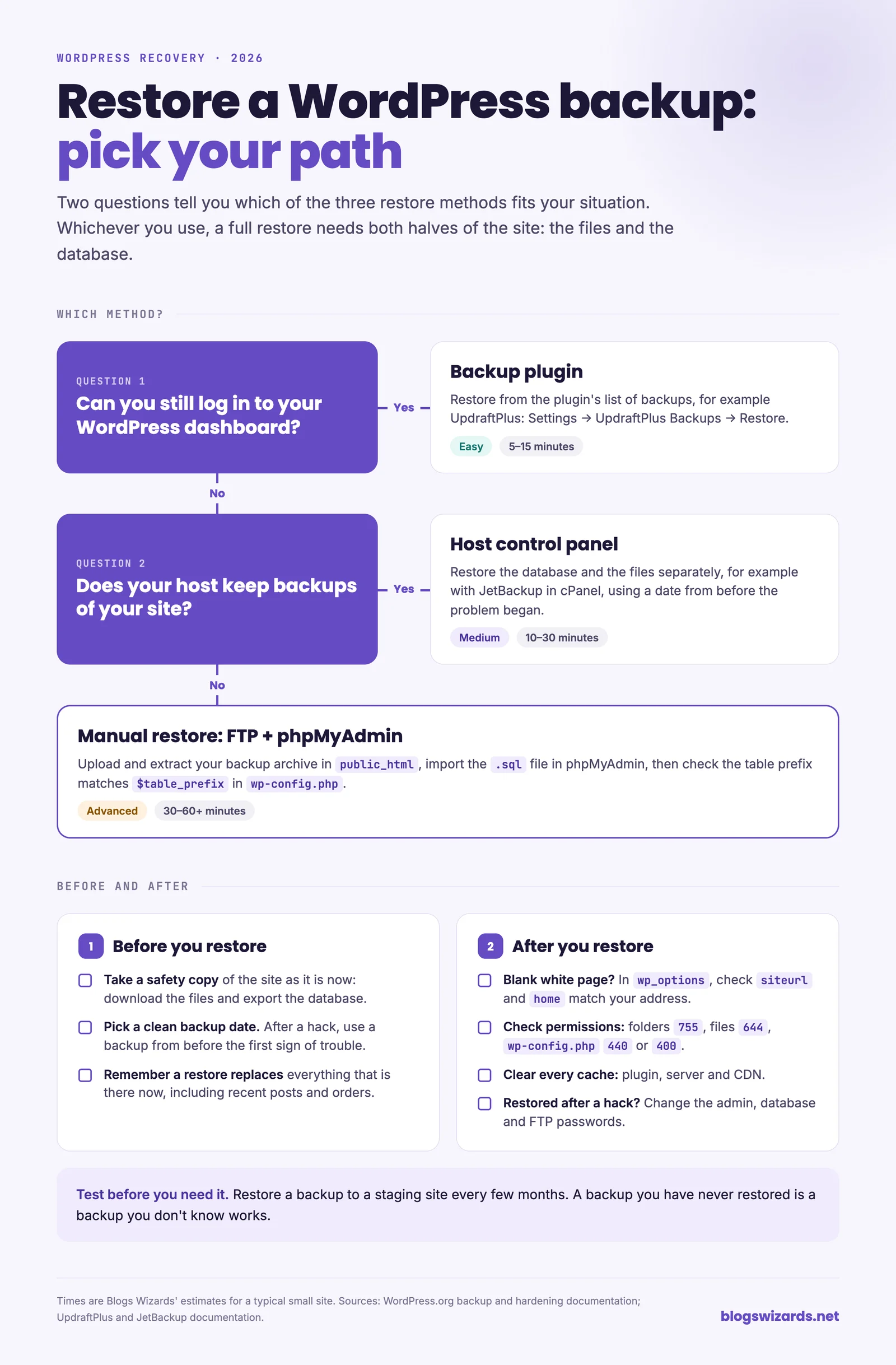
When disaster strikes, knowing how to properly restore wordpress backup files is the fastest way to get your site back online. You can restore your site using a dedicated backup plugin (the easiest method), your web host’s control panel, or manually by uploading files and importing the database. This guide walks you through all three approaches, ensuring you can recover from a crash, broken update, or security incident with minimal downtime.
Take a deep breath. If your site is currently down, we are going to get it back online. Let us look at the essentials of WordPress recovery and then dive into the exact steps for each method.
Why You Must Test Your Backup Before a Crisis
Having a backup is only half the battle; ensuring it actually works is the other. Relying on an untested backup is like keeping a fire extinguisher you have never checked. If the backup file is corrupted or incomplete, you will only discover the problem when you are already panicking.
To prevent this, schedule a test restoration on a staging site at least once a quarter. This verifies that your backup plugin is generating valid files and that your host is successfully storing them.
Understanding what you are protecting is also crucial. As the official documentation notes:
"Your WordPress database contains every post, every comment and every link you have on your blog." — WordPress.org
Because the database holds your actual content and the files hold your design and functionality, a complete restoration requires both.
How to Choose the Right Restoration Method
Blogs Wizards
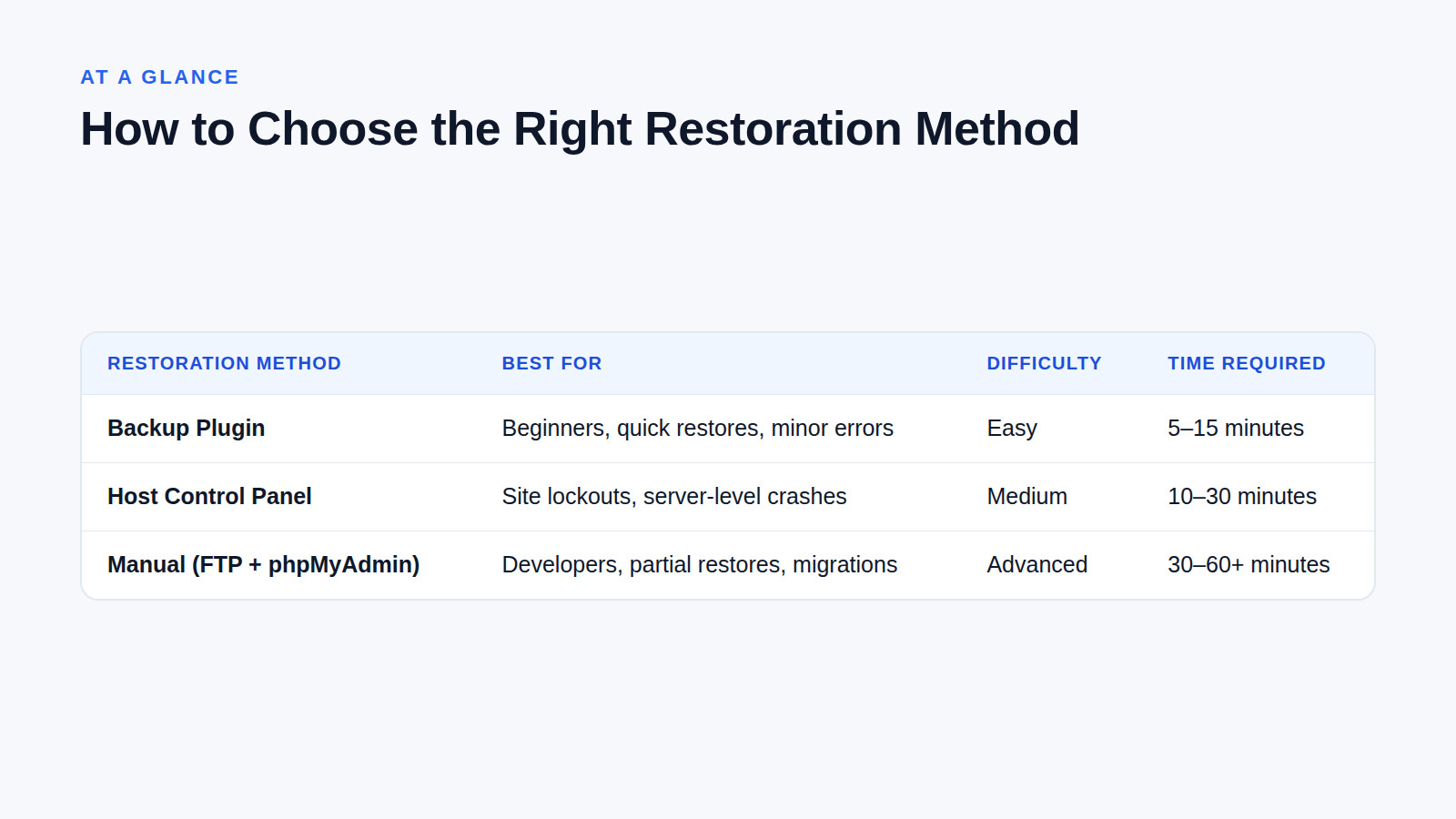
Not every restoration requires the same approach. The best method depends on your technical comfort level and the current state of your website. Here is a quick comparison to help you decide.
| Restoration Method | Best For | Difficulty | Time Required |
|---|---|---|---|
| Backup Plugin | Beginners, quick restores, minor errors | Easy | 5–15 minutes |
| Host Control Panel | Site lockouts, server-level crashes | Medium | 10–30 minutes |
| Manual (FTP + phpMyAdmin) | Developers, partial restores, migrations | Advanced | 30–60+ minutes |
Before proceeding with any method, always warn yourself: back up your current state first. If your site is partially working, download the current files and export the current database so you can revert if the restoration fails.
How to Restore WordPress Using a Backup Plugin
Restoring through a plugin is by far the easiest method and works perfectly if you can still access your WordPress dashboard. Plugins like UpdraftPlus, which has more than 3 million active installs, make this process incredibly straightforward.
To restore with UpdraftPlus, navigate to Settings → UpdraftPlus Backups. Scroll down to the "Existing Backups" section. You will see a list of your most recent backup sets. Click the Restore button next to the date you want to revert to. The plugin will ask which components to restore (plugins, themes, uploads, others, and database). For a full site recovery, ensure all boxes are checked, then click Restore again to begin.
What if your site is completely broken and you cannot access the dashboard? Some plugins offer a standalone restoration tool. For example, BackWPup Pro provides a restore standalone app that you can upload via FTP to recover your site when the backend is entirely inaccessible.
How to Restore From Your Web Host Control Panel
Blogs Wizards
If you are locked out of WordPress entirely, your web host’s control panel is your next best friend. Many managed WordPress hosts keep automatic server-level snapshots. For instance, GoDaddy Managed Hosting keeps 30 days of automatic backups for you without any extra configuration.
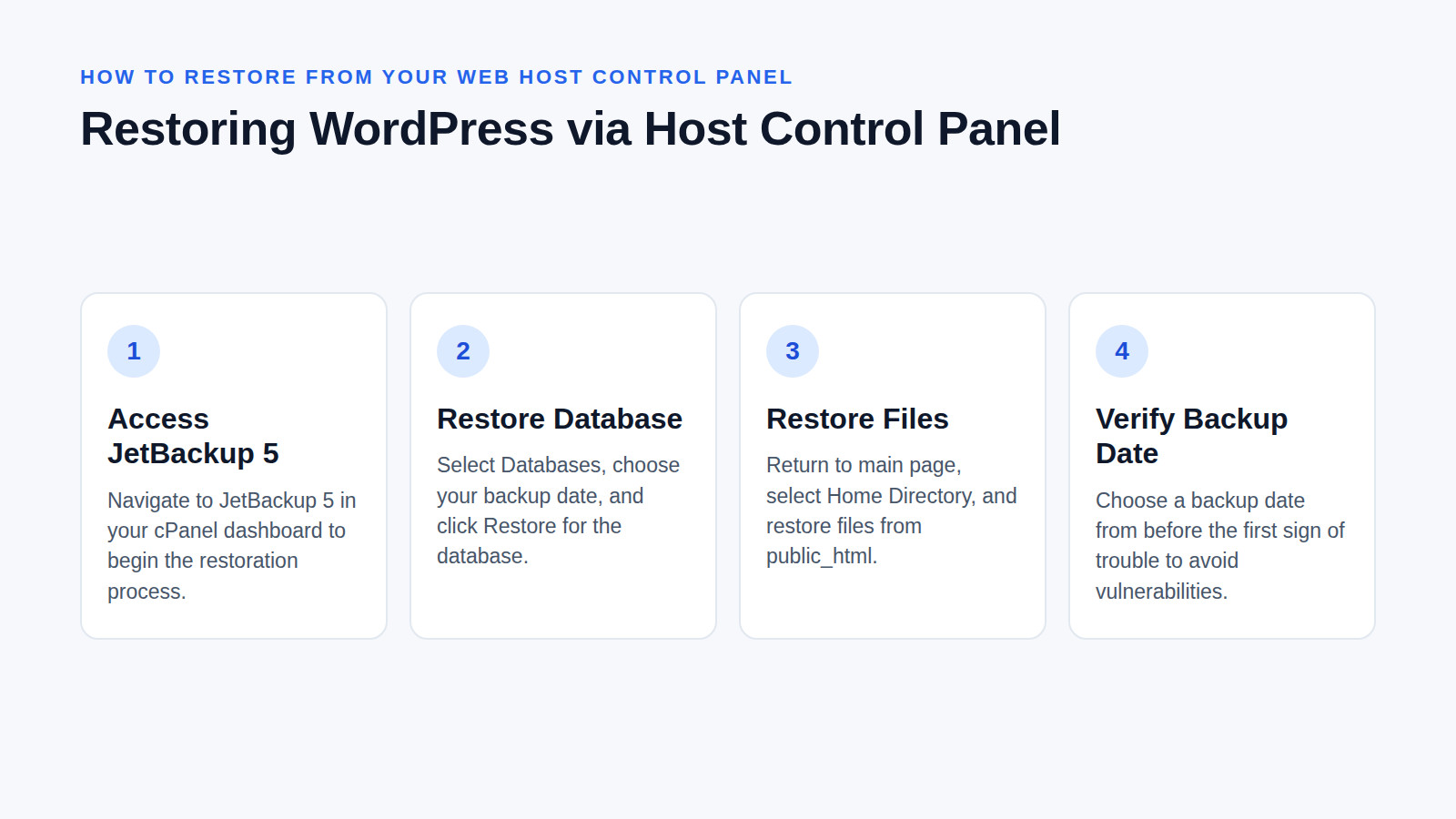
If your host uses cPanel with JetBackup 5, you can restore your files and database separately. This is often preferable to a full account restore because it prevents you from accidentally overwriting unrelated data like emails or other subdomains.
Navigate to JetBackup 5 in your cPanel dashboard. To restore the database, select Databases, choose your backup date, and click Restore. Then, return to the main JetBackup page, select Home Directory, choose your WordPress installation folder (usually /public_html/), and restore the files.
Be very careful when selecting your date if you are recovering from a security incident. As Krystal.io warns, "A restore replaces what is there now." If you restore a backup taken after your site was compromised, you are just putting the vulnerability right back. Always choose a backup date from before the first sign of trouble.
How to Manually Restore WordPress Files and Database
Manual restoration is for technical users who need direct access to their server. This method is highly reliable but requires careful attention to detail. Always use a staging environment or ensure you have a secondary backup before overwriting live files.
Step 1: Restore the Files
Connect to your server using an FTP client like FileZilla or your host’s File Manager. Upload your backup archive (such as a .tar.gz or .zip file) to the root directory where you want the site to live, typically public_html. Once uploaded, extract the .tar.gz backup file directly on the server. Extracting replaces every file that has the same name as one in the backup (GNU tar manual), but it doesn’t remove files added after the backup was made, such as a plugin you installed since. For a clean restore, move the current files into a separate folder first and extract into the emptied one.
Step 2: Restore the Database
Open your wp-config.php file via FTP and note the database name. Next, log into your hosting control panel and open phpMyAdmin. Locate the database you just identified.
Before importing, empty the database: tables with the same names as those in your backup cause conflicts, and the import can stop with a "table already exists" error (Kinsta). Export the old tables first just in case, then drop them. Once cleared, click the Import tab at the top of phpMyAdmin, select your backup .sql file from your computer, and click Go. Wait for the process to finish; large databases can take several minutes.
Step 3: Verify the Database Prefix
After importing, check the table prefix in phpMyAdmin (e.g., wp_) and ensure it exactly matches the $table_prefix defined in your wp-config.php file. If they do not match, update the prefix in wp-config.php to match the database.
How to Fix a Blank White Screen After Restoring
Sometimes, after a manual restoration or a migration, your site loads as a blank white page instead of your homepage. WordPress’s own documentation says a blank screen comes from a PHP or database error, most often caused by a plugin or the theme. Turn on WP_DEBUG in wp-config.php to see the error. If a plugin is to blame and you can’t reach the dashboard, rename the wp-content/plugins folder over FTP to switch all plugins off at once.
If the site loads but sends you to an old address, or shows up without its styling, check the site addresses. Open phpMyAdmin and navigate to your wp_options table. Look for the rows named siteurl and home. Both should hold your current website address, including https:// and with no slash at the end. If you moved the site to a new server or folder, also look at the upload_path row. It is normally empty; if it holds the old server’s folder path, it is one of the settings that needs updating after a move, so clear it or change it to the new path.
Interactive restore planner
Which restore method fits your situation?
Answer three questions. You get the method to use and a checklist for before, during and after the restore. Your ticks are saved in this browser, so you can come back mid-restore.
Your method
Your checklist0 of 0 done
Something wrong after restoring?
Blank white screen, or “There has been a critical error”
Usually a PHP error from a plugin or the theme, not the restore itself (WordPress docs).
- Check the site admin’s email. Since WordPress 5.2, a fatal error sends a link that opens the dashboard in recovery mode.
- Turn on logging in
wp-config.php, above the “stop editing” line, then load the page again and readwp-content/debug.log:define( 'WP_DEBUG', true ); define( 'WP_DEBUG_LOG', true ); define( 'WP_DEBUG_DISPLAY', false ); - If the log names a plugin, or you can’t tell, rename
wp-content/pluginstoplugins_oldover FTP to switch every plugin off. Then rename it back and turn plugins on one at a time. - If it’s the theme, rename the active theme’s folder so WordPress falls back to a default theme.
- Set
WP_DEBUGback tofalsewhen you’re done.
“Error establishing a database connection”
WordPress can’t log in to the database. After a restore or a move this is usually a mismatch in wp-config.php.
- Compare
DB_NAME,DB_USER,DB_PASSWORDandDB_HOSTwith the database details in your hosting panel. A restoredwp-config.phpmay hold the old server’s details. - Check that the database user is attached to the database, with all privileges.
- Check that the tables were imported and that their prefix matches
$table_prefix.
Site sends you to the old address, or shows without its styling
The siteurl and home settings in the database point somewhere else.
- In phpMyAdmin, open the
wp_optionstable (your prefix may differ) and edit thesiteurlandhomerows. - Both should be your current address, including
https://and with no slash at the end (WordPress docs). - If you can’t reach the database, add these two lines to
wp-config.phpinstead:define( 'WP_HOME', 'https://example.com' ); define( 'WP_SITEURL', 'https://example.com' );
Homepage works but every post shows “Page not found”
The rewrite rules are stale, or the hidden .htaccess file wasn’t restored. Many FTP clients skip hidden files.
- Go to Settings → Permalinks and click Save Changes without changing anything. This rebuilds the rules.
- If that doesn’t fix it, check that
.htaccessexists in the WordPress folder. Turn on “show hidden files” in your FTP client or File Manager.
Images are missing or broken
- Check that
wp-content/uploadswas restored. Some restores only bring back the database. - In
wp_options, theupload_pathrow is normally empty. If it holds the old server’s folder path, clear it. - If image addresses still point at the old domain, run a search and replace on the database (see “Moving to a new host or address” above).
Your password no longer works
The restore brought back the users and passwords as they were on the backup date.
- Try the password you used on that date, or use Lost your password? on the login page.
- If the site can’t send email, ask your host to reset it, or create a new administrator with WP-CLI:
wp user create.
Based on the WordPress developer documentation (common errors, moving WordPress), Krystal’s JetBackup guide and Kinsta’s database import guide. Menu names can differ between plugin and host versions.
A Quick-Reference Checklist for Safe Restorations
To ensure your recovery process is smooth and secure, follow this practical checklist before and after you restore:
- Create a safety snapshot: Download your current live files and export your current database before overwriting anything.
- Verify the backup date: If recovering from an error or hack, ensure the backup is from a known "clean" state.
- Check file permissions: After a manual restore, ensure your
wp-config.phpis set to440or400, and folders are set to755. - Flush your caches: Clear your plugin cache, server-level cache, and CDN (like Cloudflare) to ensure visitors see the restored site.
- Reset passwords: If you are restoring after a security incident, immediately change your WordPress admin, database, and FTP passwords.
Frequently asked questions
How do I restore a WordPress backup?
You can restore a WordPress backup using a dedicated plugin like UpdraftPlus via the dashboard, through your web host’s control panel (like cPanel or managed hosting portals), or manually by uploading files via FTP and importing the database via phpMyAdmin.
Where are my WordPress backups stored?
Your backups are stored wherever you configured them to go. If you use a plugin, they might be on your local server, or sent to remote cloud storage like Google Drive, Dropbox, or Amazon S3. If you rely on your host, they are stored on the hosting provider’s external backup servers.
How to take a full backup of a WordPress site manually?
To take a full manual backup, connect to your server via FTP and download the entire public_html directory to your computer. Then, open phpMyAdmin in your host control panel, select your WordPress database, and click "Export" to download a .sql file.
Can I restore a WordPress site to a previous date without a backup?
No, you cannot restore a site without a backup file or database dump. However, if you do not have your own backups, check your web host’s control panel, as many managed WordPress hosts keep automatic server-level snapshots for 14 to 30 days that you can restore from.
Related articles
Reviewed by Shahid Anwer · Editorial standards
