

Discovering a hacked WordPress site is stressful, but you can recover by isolating the infection, replacing compromised core files, and resetting all access credentials. This guide walks you through identifying the breach, executing a step-by-step cleanup, removing search engine warnings, and hardening your site against future attacks.
How Can I Tell If My WordPress Site Has Been Hacked?
When something feels off, it is natural to panic, but taking a pragmatic approach helps you maintain your sanity and limit the damage. As the official documentation notes, "A hack is a very ambiguous term, which in it of itself will provide little insights into what exactly happened". To get the right help, you need to identify the specific Indicators of Compromise (IoC).
Clear signs that your site has been compromised include:
- Your website is blacklisted by Google or Bing, or your host has disabled the site entirely.
- Visitors report that their desktop antivirus software flags your site for distributing malware.
- You notice unauthorized behavior, such as new administrator accounts you did not create.
- Your homepage has been vandalized or replaced with a static page.
- You are suddenly unable to log in to your WordPress dashboard because your credentials were changed.
Other subtle symptoms include unexpected redirects to external sites, a sudden drop in organic traffic, new pop-up ads in your footer, or the site becoming noticeably slow and unresponsive.
What Should You Do Immediately After Discovering a Hack?
Blogs Wizards
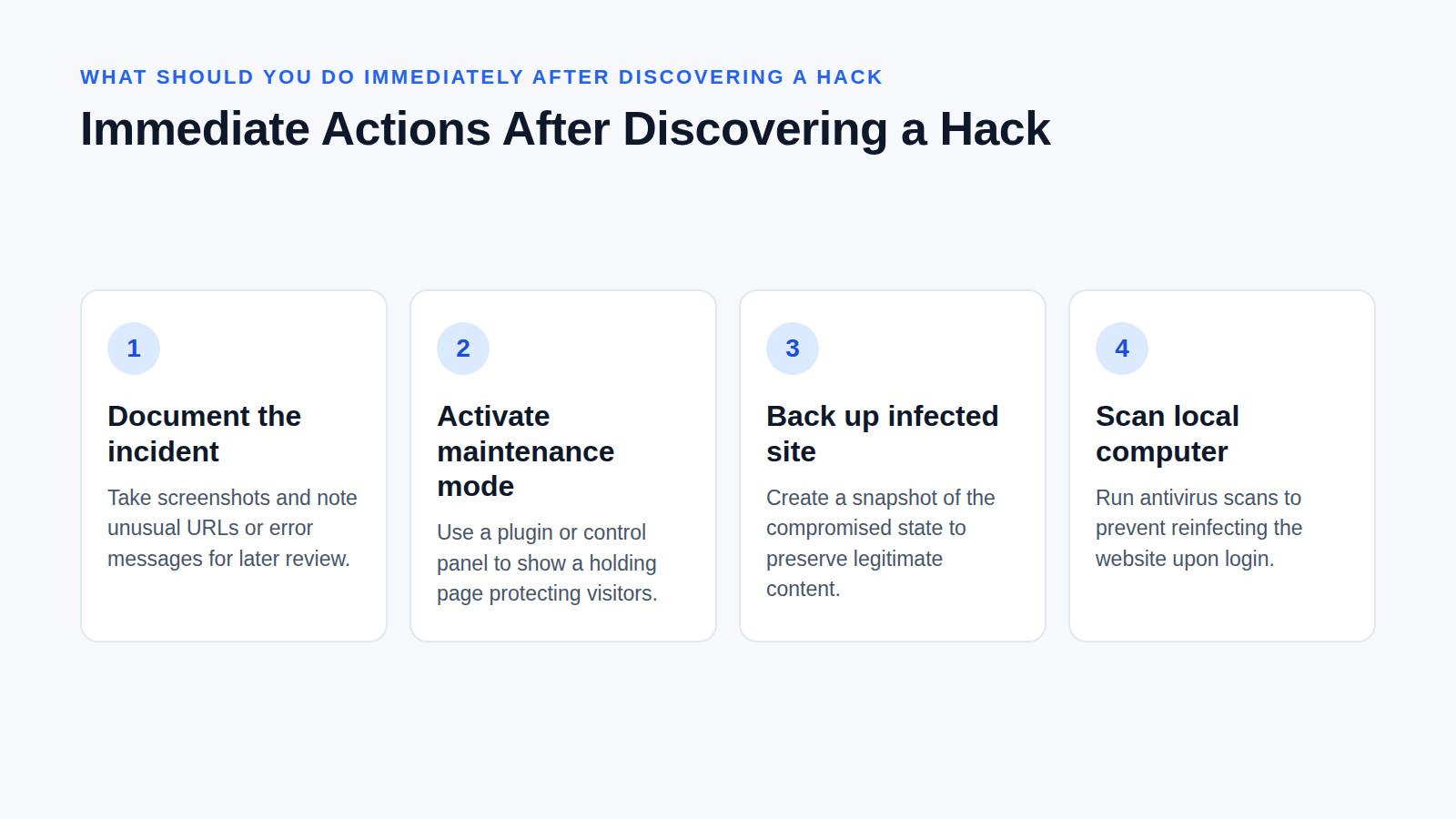
Before you start deleting files, follow a strict order of operations to protect your data and your visitors.
1. Document the incident
Take screenshots and write down exactly what you are seeing, including any unusual URLs or error messages. This documentation is crucial if you need to involve your hosting provider or a security professional later.
2. Activate maintenance mode
Use a maintenance mode plugin or your host’s control panel to put up a temporary holding page. This prevents visitors from encountering malware and protects your brand reputation while you work behind the scenes.
3. Back up the infected site
It sounds counterintuitive to back up a hacked site, but you must create a snapshot of the compromised state. This ensures you do not lose legitimate content during the cleanup and gives you a baseline to compare against clean core files.
4. Scan your local computer
Run a full antivirus and malware scan on the computer you use to manage your website. If your local machine is infected, you will simply reinfect your WordPress site the moment you log back in to clean it.
How to Scan and Clean a Hacked WordPress Site
Warning: Always perform these steps on a staging environment if your host provides one. If you must work on the live site, ensure your infected backup is securely stored off-site.
Step 1: Scan for malware
Use a remote scanning tool like Sucuri SiteCheck to identify malicious payloads and locate the general area of the infection. This helps you narrow down which files need immediate attention.
Step 2: Replace core WordPress files
Download a fresh, clean copy of WordPress from the official repository. Using your hosting file manager or an FTP client, delete the wp-includes and wp-admin folders on your server, then upload the fresh versions. Replace the core files in your root directory as well. Do not overwrite your wp-content folder or your wp-config.php file at this stage, as they contain your themes, plugins, and database credentials.
Step 3: Hunt for hidden backdoors
Hackers often leave backdoors to regain access even after you clean the main infection. Check your wp-content/uploads folder for any .php files, as this directory should only contain media files like images and PDFs. Open your .htaccess file and look for unauthorized redirect rules. Finally, sort your file manager by "Last Modified" to identify any suspicious files changed around the time the hack occurred.
Step 4: Clean the database
Malware often injects spammy posts, hidden links, or fake user accounts directly into the database. Review your Users list in the WordPress dashboard and delete any unknown administrators or subscribers. Check your recent posts and pages for hidden iframes or suspicious external links.
How to Reset Passwords, Salts, and Remove Google Warnings
Blogs Wizards
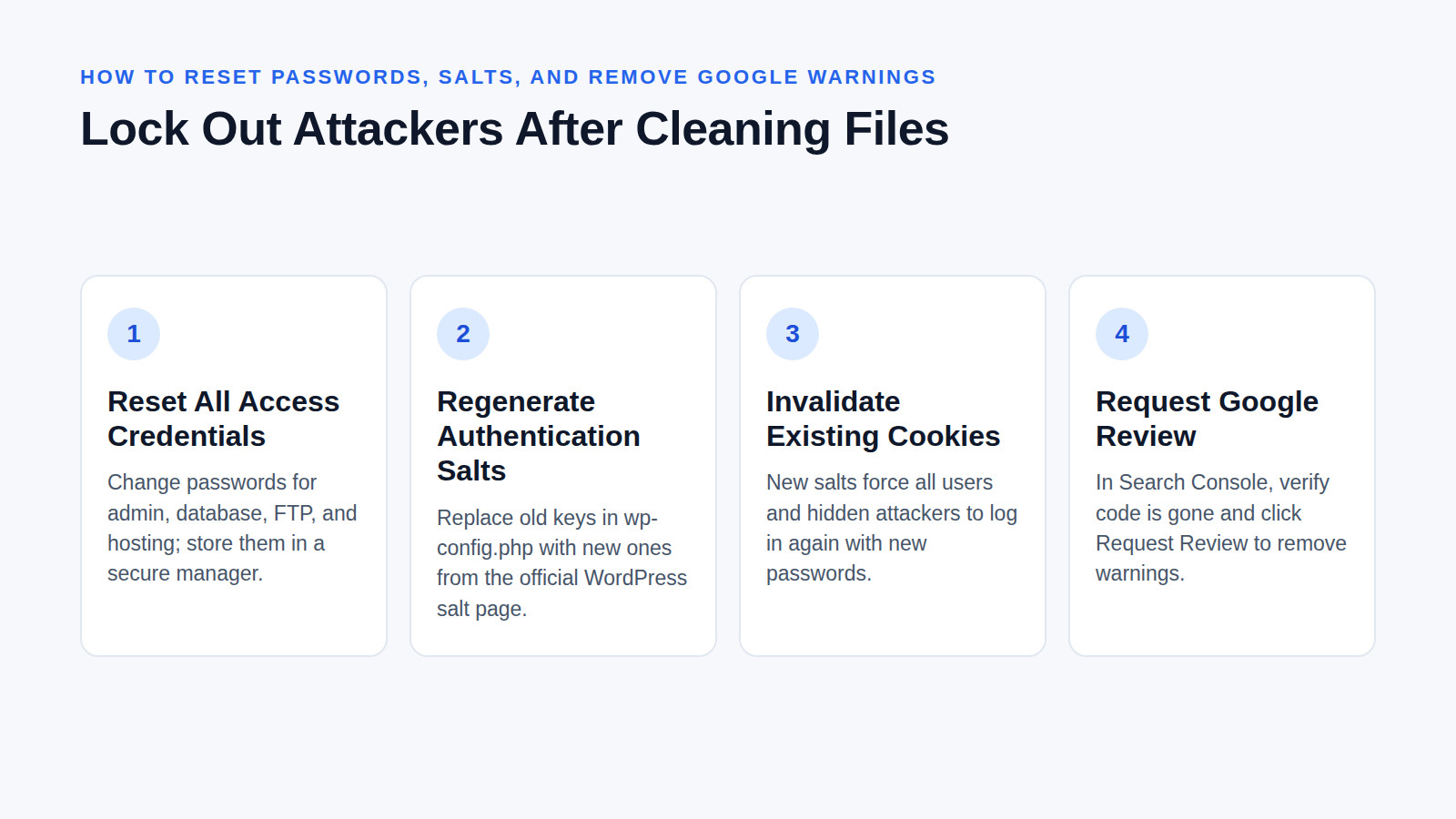
Cleaning the files is only half the battle; you must also lock out the attackers.
Reset all access credentials
Change the passwords for your WordPress admin accounts, your database, your FTP/SFTP credentials, and your web hosting control panel. Ensure every password is long, unique, and stored in a secure password manager.
Regenerate your authentication salts
Your salts are secret keys stored in your wp-config.php file that encrypt the cookies users rely on to stay logged in. If a hacker has stolen these keys, they can forge login sessions. Go to the official WordPress salt page, generate a new set of keys, and paste them into your wp-config.php file, replacing the old ones. This instantly invalidates all existing cookies, forcing every user (and any hidden attacker) to log in again with the new passwords.
Request a review in Google Search Console
If Google has flagged your site with a "Hacked: Malware" warning, log into Google Search Console once the site is fully clean. Navigate to the Security Issues report, verify that the malicious code is gone, and click "Request Review." Google will manually re-crawl your site and remove the warning, usually within a few days.
When Should You Hire a Professional for Malware Removal?
If you are a beginner, or if the hack involves deep database injections, you should hire a professional security service. Modern attacks are highly sophisticated. For instance, some threat actors now use compromised WordPress sites to host ransomware command-and-control infrastructure, while others deploy "a technique used to obscure malicious code or data by placing it on a public blockchain" to hide their malicious scripts from traditional scanners.
If you cannot access your admin panel, if the malware keeps returning after you clean it, or if you are running a mission-critical e-commerce store, a professional team has the specialized tools and server-level access required to fully eradicate the threat without breaking your site.
What to Watch For: The Changing Landscape of WordPress Security
Blogs Wizards
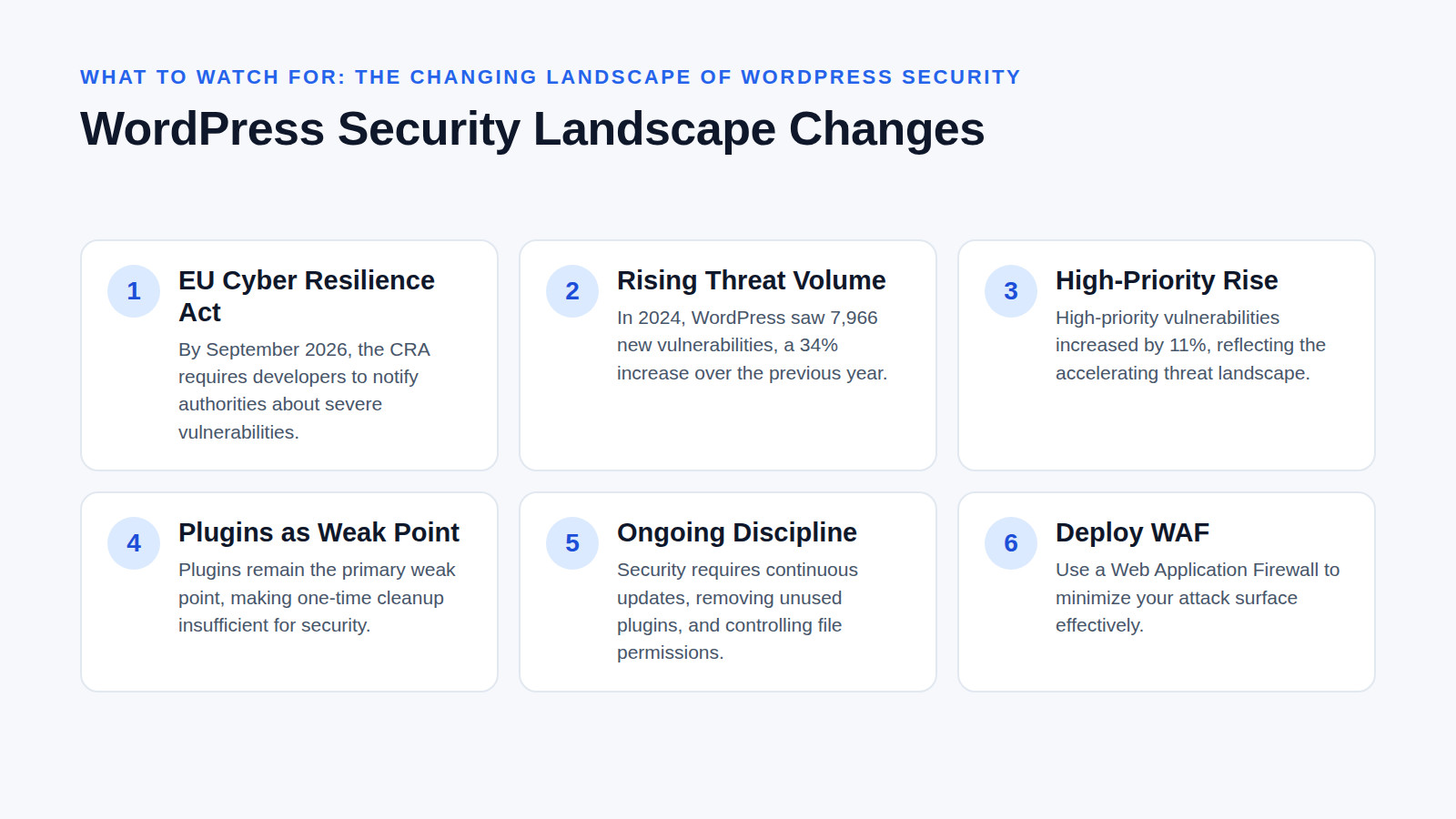
The threat landscape is shifting rapidly, driven by new regulations and advanced evasion tactics. By September 2026, the European Union’s Cyber Resilience Act (CRA) will require open-source developers to notify authorities and users about actively exploited or severe vulnerabilities.
This regulatory shift is critical because the volume of threats is accelerating. In 2024 alone, there were 7,966 new vulnerabilities found in the WordPress ecosystem, representing a 34% increase over the previous year. High-priority vulnerabilities also rose by 11%.
"WordPress’s massive popularity makes it an attractive target. But popularity alone doesn’t tell the whole story." — Wordfence
Because plugins remain the primary weak point, site owners must realize that a one-time cleanup is no longer sufficient. Effective security now requires treating hardening as an ongoing operational discipline: continuously updating software, removing unused plugins, controlling file permissions, and deploying a Web Application Firewall (WAF) to minimize your attack surface.
Post-Hack Recovery Checklist
Use this quick-reference summary to ensure you have covered every critical step before taking your site live again.
| Recovery Phase | Action Item | Status |
|---|---|---|
| Triage | Document symptoms and activate maintenance mode. | [ ] |
| Backup | Create a full backup of the infected site and database. | [ ] |
| Local Scan | Run a full antivirus scan on your personal computer. | [ ] |
| Core Files | Replace wp-admin, wp-includes, and root core files. |
[ ] |
| Backdoors | Delete .php files in uploads and check .htaccess. |
[ ] |
| Database | Remove unknown users and spammy injected content. | [ ] |
| Credentials | Reset WP, database, FTP, and hosting passwords. | [ ] |
| Salts | Generate and replace authentication keys in wp-config.php. |
[ ] |
| Updates | Update all remaining themes and plugins to latest versions. | [ ] |
| Search Console | Request a malware review in Google Search Console. | [ ] |
Frequently asked questions
How can I tell if my WordPress site has been hacked?
Look for clear Indicators of Compromise (IoC) such as being blacklisted by search engines, receiving malware warnings from visitors’ antivirus software, or noticing unauthorized changes like new admin users, redirected pages, or vandalized homepages. A sudden drop in traffic or an inability to log in are also strong indicators.
How to fix a hacked WordPress site?
Start by putting the site in maintenance mode and backing up the infected state. Then, replace the core WordPress files (wp-admin and wp-includes) with fresh downloads, scan for and delete hidden backdoor files in your uploads folder, reset all passwords, and regenerate your authentication salts in wp-config.php.
How often is WordPress hacked?
Because it powers a massive portion of the web, it is a frequent target. Industry estimates suggest there are more than 13,000 cyber attacks on WordPress websites every single day, totaling millions of incidents annually.
Is WordPress safe from hackers?
The core WordPress software itself is highly secure and maintained by expert developers. However, the broader ecosystem is vulnerable; outdated plugins, poorly coded third-party themes, weak passwords, and human error create the loopholes that hackers actually exploit to gain access.
Related articles
Reviewed by Shahid Anwer · Editorial standards
