
When you finish a fresh WordPress setup, the software hands you a blank dashboard packed with factory defaults that invite spam bots, create messy links, and make your site look like an abandoned test project. Changing your permalinks, securing your login, and disabling open registrations immediately protects your site and lays the groundwork for better search engine visibility. This guide walks you through the exact menu paths and settings to adjust before you publish your first post.
How do I secure my new WordPress login and user accounts?
Securing your WordPress login requires changing the default admin username, hiding the standard login URL, and disabling open user registration to prevent spam bots from creating junk accounts. These steps stop malicious users from easily targeting your dashboard with brute force attacks.
WordPress websites all share the same default login page (/wp-login.php, which /wp-admin also leads to) and often use predictable admin usernames. As InMotion Hosting explains, This is a major security concern, as it is a well known page and malicious users will attempt to brute force attack your website via this page.
To lock down your access, follow these steps:
- Change the admin username: If you installed WordPress with the username "admin", create a new user with the Administrator role, log in as the new user, and delete the old "admin" account.
- Hide your login URL: Install a free plugin like WPS Hide Login to change your login slug to something only you know. Bookmark your new login URL immediately, as the standard
/wp-adminpath will no longer work. - Disable open registration: Navigate to Settings → General. Uncheck the box next to "Anyone can register" and ensure the "New User Default Role" is set to Subscriber. This prevents automated bots from filling your database with fake accounts.
What is the best permalink structure for SEO and clean URLs?
Blogs Wizards
The best permalink structure for search engine optimization is the "Post name" format, which replaces messy default numbers with readable, keyword-rich URLs. Configuring permalinks immediately prevents broken links and helps search engines index your pages without hitting duplicate content issues.
By default, WordPress uses a "Plain" permalink structure that looks like yourdomain.com/?p=123. This tells search engines and visitors nothing about the content of the page. Switching to a descriptive structure ensures your URLs are user-friendly and optimized for search.
To update your permalinks:
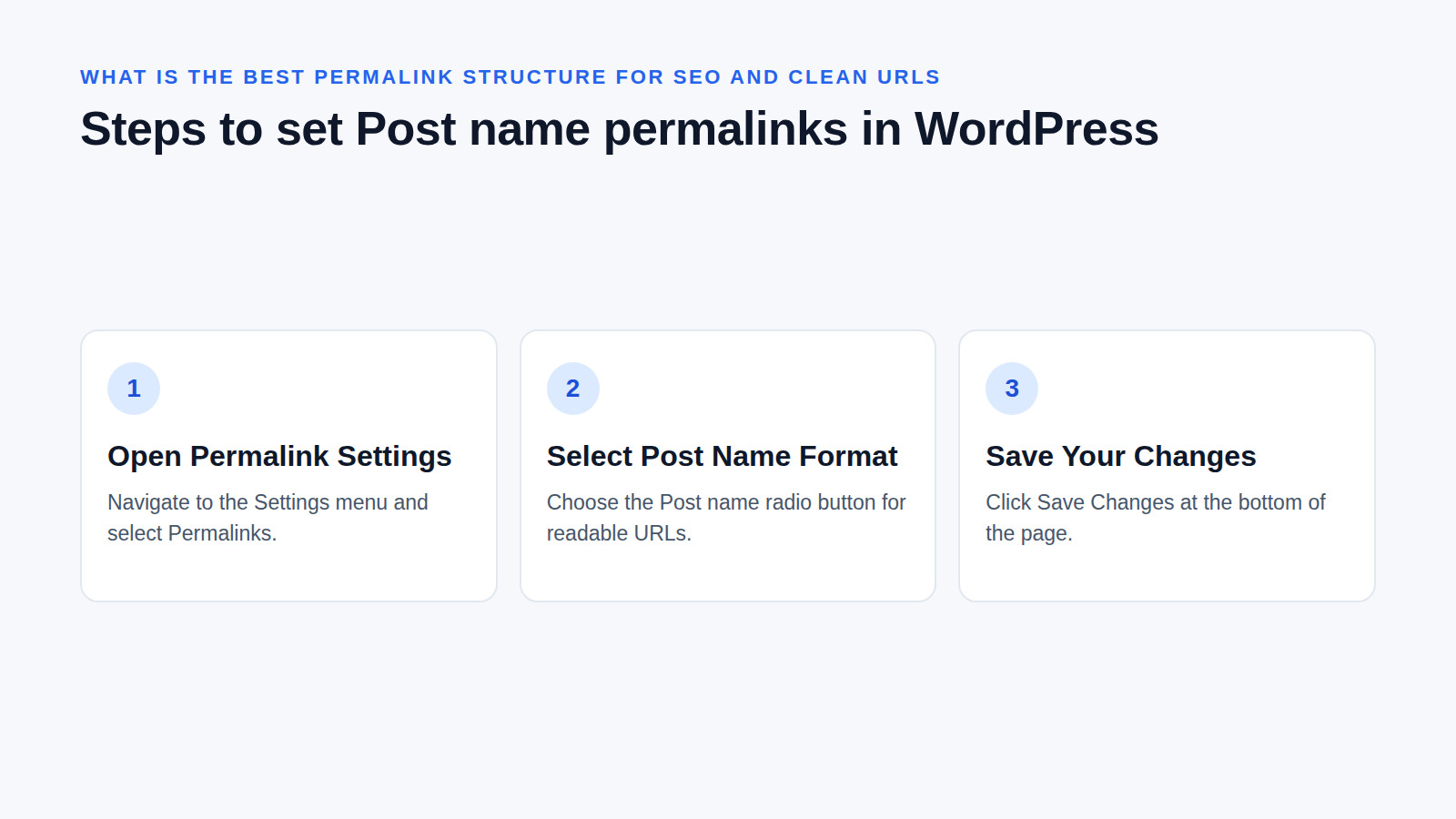
- Go to Settings → Permalinks.
- Select the Post name radio button.
- Click Save Changes at the bottom of the page.
Warning: You should only change permalink structures on a brand-new site. If you change this on an established site with existing content, all your old URLs will break unless you set up 301 redirects.
How do I configure general site identity and timezone settings?
Configuring your site identity involves updating the site title, removing the default tagline, setting your exact local timezone, and uploading a favicon. These adjustments ensure your brand appears correctly in browser tabs and search results while keeping your post schedules aligned with your local time.
The team at Register.lk notes that the "default title and tagline don’t reflect your brand, which can confuse visitors and hurt your SEO".
To personalize your identity and schedule:
- Navigate to Settings → General. Update your Site Title and Tagline to accurately describe your business or blog. Scroll down to set your Timezone to your exact local city, and choose a readable Date Format.
- To add a favicon (the small icon next to your site title in browser tabs) with a classic theme, go to Appearance → Customize → Site Identity and click Select Site Icon to upload your logo. Block themes such as Twenty Twenty-Five have no Customize menu: open Appearance → Editor, select the Site Logo block, and turn on Use as site icon.
- Crucial Warning: Leave the "WordPress Address (URL)" and "Site Address (URL)" fields at the top of the General Settings page exactly as they are. As Learn WordPress warns, "changing the URL settings here can make your site inaccessible from the front or back end". Only touch these if you are specifically implementing an SSL certificate.
Which default WordPress settings should I disable to stop spam?
Blogs Wizards
You should disable pingbacks, trackbacks, and open comment registrations, while deleting the default sample posts and the Hello Dolly plugin. Turning off these legacy features stops spam bots from filling your database with junk records and keeps your dashboard clean.
WordPress was built over two decades ago, and some default features are now primarily used by spam networks. Pingbacks and trackbacks were designed to notify sites when they were linked to, but they are now heavily exploited by spammers.
To clean up your default content and discussions:
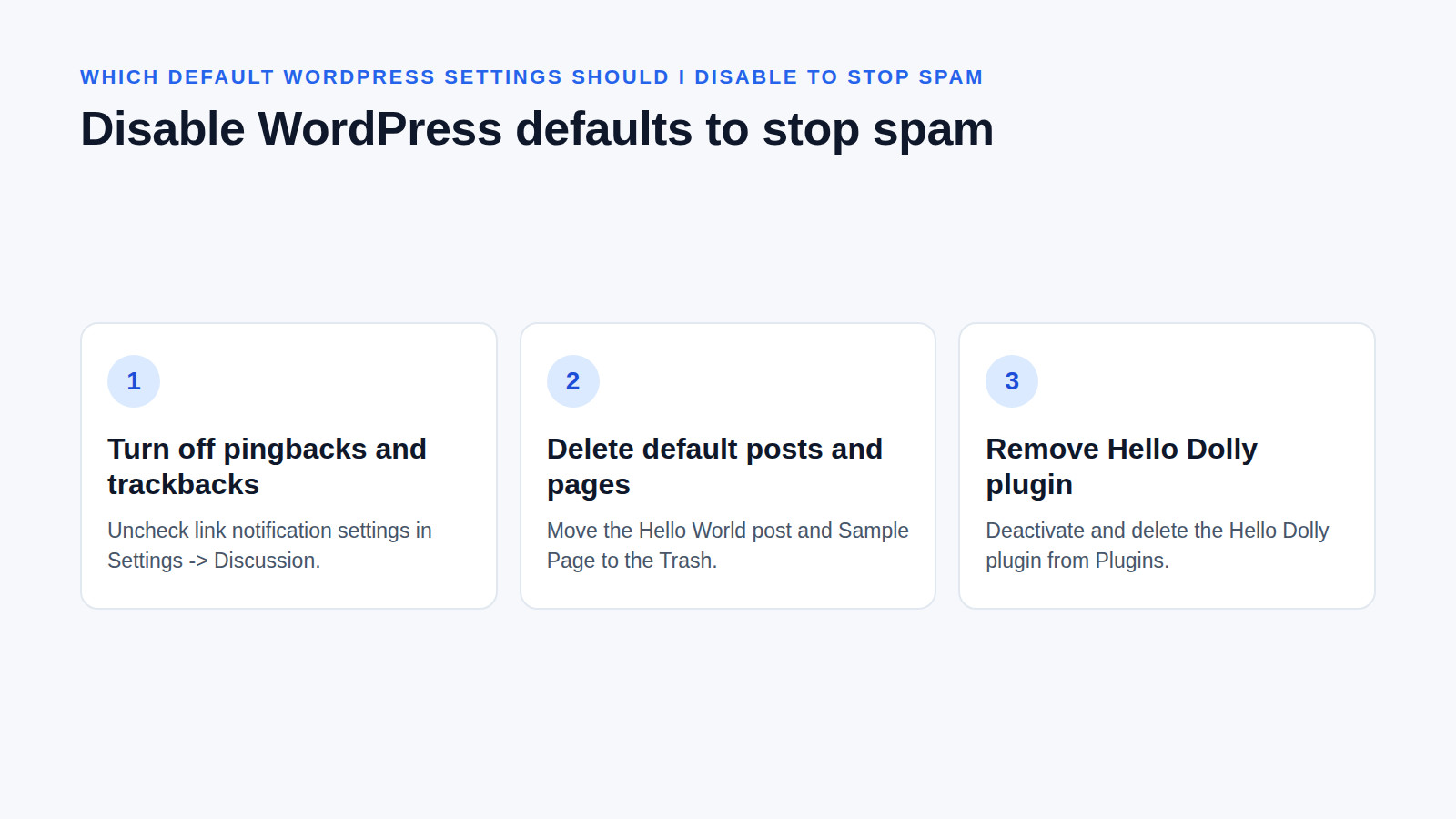
- Go to Settings → Discussion. Uncheck Attempt to notify any blogs linked to from the article and Allow link notifications from other blogs (pingbacks and trackbacks).
- Go to Posts and Pages in your left-hand menu. Move the default "Hello World" post and "Sample Page" to the Trash.
- Go to Plugins. Find the "Hello Dolly" plugin, click Deactivate, and then click Delete.
How do I set up my homepage and reading preferences?
Blogs Wizards
Setting up your homepage requires choosing between a static front page or a dynamic blog roll, and verifying that search engine visibility is enabled. These reading preferences dictate how visitors experience your site upon arrival and ensure search engines can actually index your content.
If you are building a standard business site or portfolio, you likely want a custom-designed homepage rather than a list of your latest blog posts. Furthermore, WordPress sometimes defaults to hiding your site from search engines during the initial setup phase.
To configure your reading preferences:
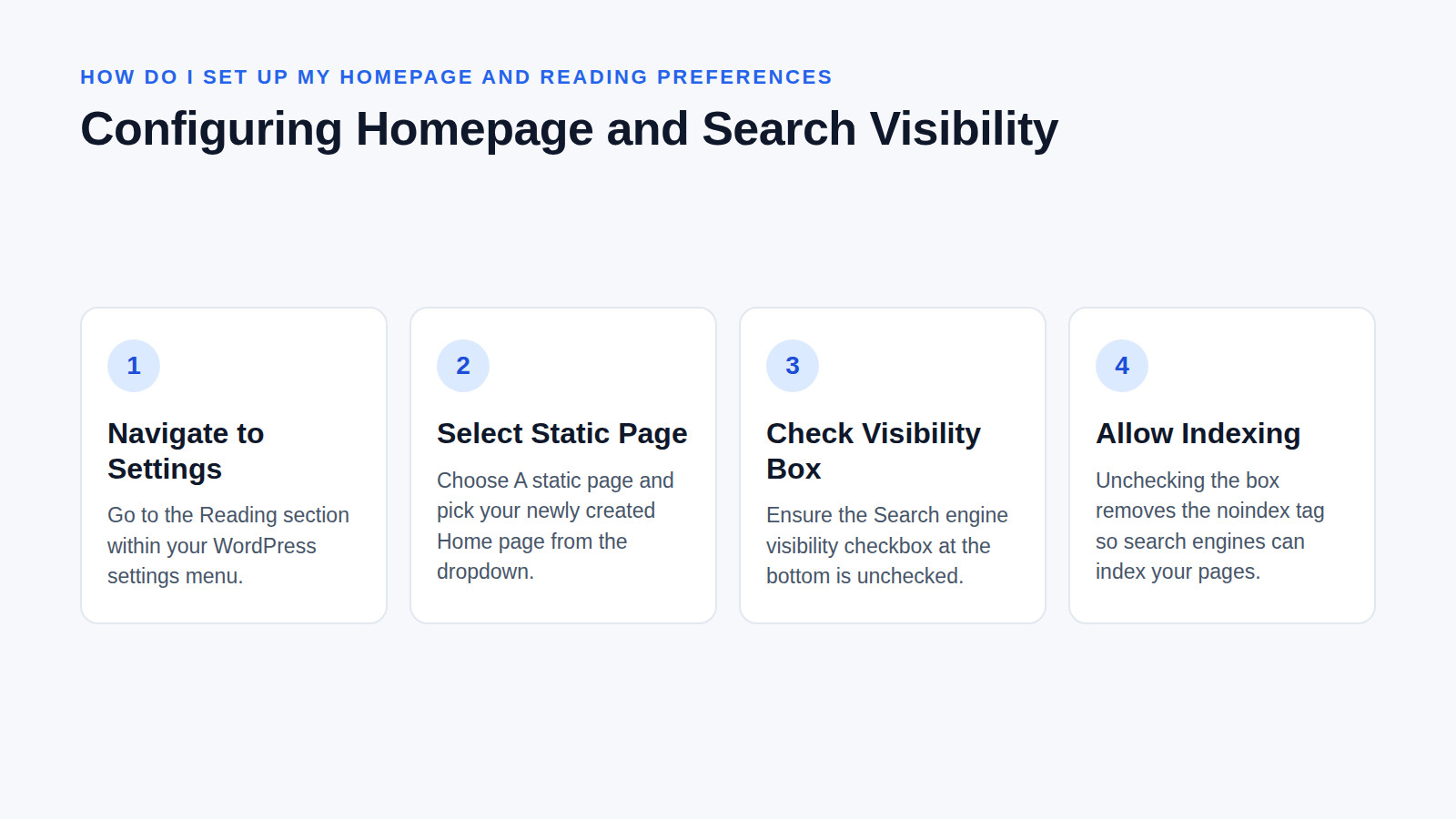
- Navigate to Settings → Reading.
- Under "Your homepage displays", select A static page and choose your newly created Home page from the dropdown menus. (If you are building a traditional blog, leave it on "Your latest posts").
- Look at the "Search engine visibility" checkbox at the bottom. Ensure this box is unchecked. If it is checked, WordPress adds a
noindextag to your site, telling Google to ignore you. Unchecking it allows search engines to index your pages.
What does changing these settings mean for your site’s long-term health?
Modifying core defaults immediately establishes a secure, search-friendly foundation that prevents messy URLs, broken post schedules, and amateur placeholder text from compounding over time. Leaving factory switches alone invites automated spam and creates structural debt that becomes increasingly difficult to fix as your content library grows.
When you launch a site with default permalinks, you eventually have to migrate to clean URLs, which requires mapping hundreds of 301 redirects to preserve your search rankings. When you leave user registration open, you might wake up to thousands of spam accounts that bloat your database and slow down your admin panels. By spending twenty minutes adjusting these settings on day one, you avoid months of frustrating maintenance and protect your site’s technical foundation.
Quick-Reference: Default Settings vs. Long-Term Risk
| Default Setting | Risk of Leaving Unchanged |
|---|---|
Plain Permalinks (?p=123) |
Poor SEO, unreadable URLs, difficult to share on social media. |
| Open User Registration | Spam bots create thousands of fake accounts, bloating your database. |
| Default Admin Username | Hackers easily guess the login name, increasing brute-force success rates. |
| "Just another WordPress site" Tagline | Looks unprofessional, confuses visitors, and misses primary keyword opportunities. |
| Pingbacks and Trackbacks Enabled | Attracts automated spam comments and unnecessary server requests. |
Frequently asked questions
Why are people moving away from WordPress?
While some users seek simpler hosted builders, WordPress remains the dominant platform because it powers about 38.5% of all websites on the internet. Users typically look for alternatives like Wix or Squarespace when they want visual editing without managing hosting, though self-hosted WordPress offers unmatched flexibility for long-term growth.
Is WordPress still relevant in 2026?
WordPress is highly relevant in 2026, powering about 38.5% of all websites, according to W3Techs. Its ecosystem of themes, plugins, and page builders allows small businesses and bloggers to scale their sites without writing code, maintaining its position as the most flexible content management system available.
Does WordPress automatically update?
WordPress installs minor core updates (security and maintenance releases) automatically. Whether major versions update on their own depends on your host and the setting under Dashboard → Updates, so check that screen after installing. Plugins and themes also require manual updates, which you should perform regularly after backing up your site to ensure compatibility and patch security vulnerabilities.
How do I reset WordPress settings to default?
Resetting WordPress settings to default takes a reset plugin, WP-CLI (wp db reset followed by a fresh wp core install), or clearing your database tables by hand in phpMyAdmin. There is no native button in the dashboard to restore factory settings, so always create a full backup before attempting any database modifications.
Reviewed by Shahid Anwer · Editorial standards
