
The WordPress dashboard is the central control panel where you manage every aspect of your website, from publishing content to configuring security settings. This guide walks you through every menu item in the admin area, explaining exactly what each tool does and how to navigate the backend efficiently.
How do you access the WordPress admin dashboard?
You access the WordPress admin dashboard by appending /wp-admin to your domain name, which redirects you to the login page if you are not already authenticated. The standard login URL requires your administrator username and password to enter the backend control panel and begin managing your site content.
"The WordPress admin dashboard, often called WP Admin or WP admin panel, is essentially the “control panel for your entire WordPress website”."
If you are not already logged in, navigating to your main domain with /wp-admin added to the end will automatically redirect you to the WordPress admin login page. You will need to enter the username and password associated with your WordPress account. If your site is installed in a subdirectory, such as yourdomain.com/wordpress/, you must include that folder name in the URL path.
For security purposes, many site owners choose to change the default login URL. Because bots and automated scripts constantly scan for the standard /wp-login.php address, moving your login page to a custom URL adds a basic layer of protection against brute-force attacks. You can achieve this using various security plugins that allow you to define a unique slug for your authentication page.
What appears on the main Dashboard home screen?
Blogs Wizards
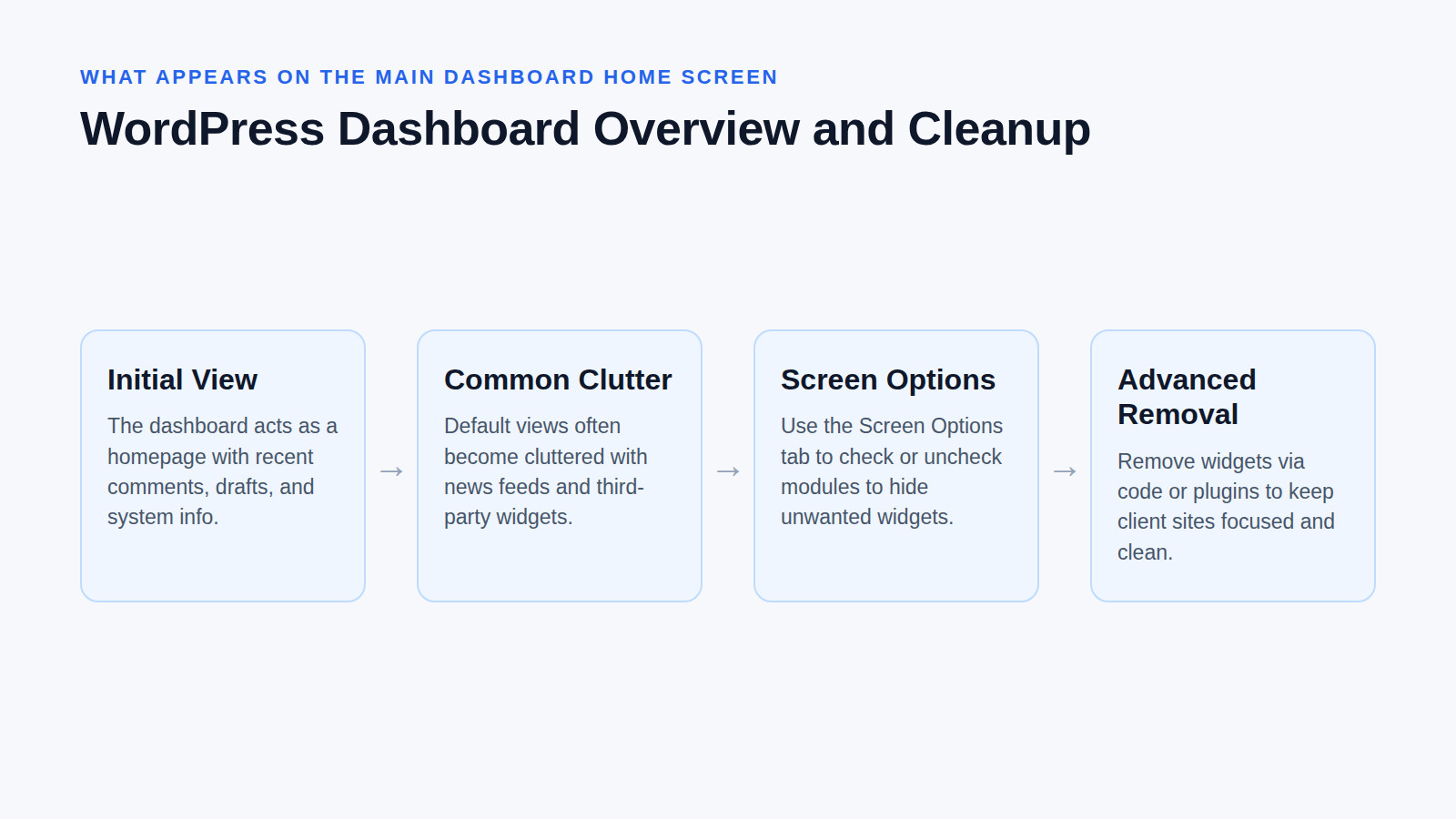
The main Dashboard home screen provides a high-level overview of your site activity, displaying recent drafts, quick links, and system notifications. It acts as your starting point, though many administrators customize this view by removing unnecessary widgets to maintain a clean and focused workspace for daily tasks.
When you first log in, the Dashboard screen acts as your homepage. The WordPress Dashboard gives you a “quick overview of your site activity”, including recent comments, draft posts, and at-a-glance system information. However, this default view can quickly become cluttered with news feeds from WordPress.org and promotional widgets from third-party plugins.
To clean up this space, you can use the Screen Options tab located at the top right of the admin area. This feature allows you to check or uncheck specific modules, effectively hiding widgets you do not need. For those managing client sites, learning how to remove WordPress dashboard widgets entirely via code or specialized plugins ensures that clients are not distracted by irrelevant information when they log in to write a post.
How do Posts, Pages, and Media organize your content?
Posts, Pages, and Media form the core content management system of WordPress, separating time-sensitive articles from static site structure and reusable files. Posts handle blog updates with categories and tags, Pages manage permanent content like an About section, and the Media Library stores all uploaded images and documents.
"Posts are the core of WordPress content management," allowing you to create, design, and publish articles using the block-based editor. Within the Posts menu, you can organize your content using categories for broad groupings and tags for specific details, which aids in both site navigation and search engine optimization.
Pages, on the other hand, are designed for static content that rarely changes. You use the Pages menu to build your site’s structural foundation, such as your homepage, About page, and contact forms. Unlike posts, pages do not use categories or tags and are instead organized hierarchically, allowing you to create parent and child page relationships.
The Media menu houses every image, video, audio file, and document you upload to your site. Instead of uploading the same image multiple times for different articles, you upload it once to the Media Library and reuse it anywhere. This centralized approach saves storage space and keeps your digital assets organized and easily searchable.
Where do you manage site design and functionality?
Blogs Wizards
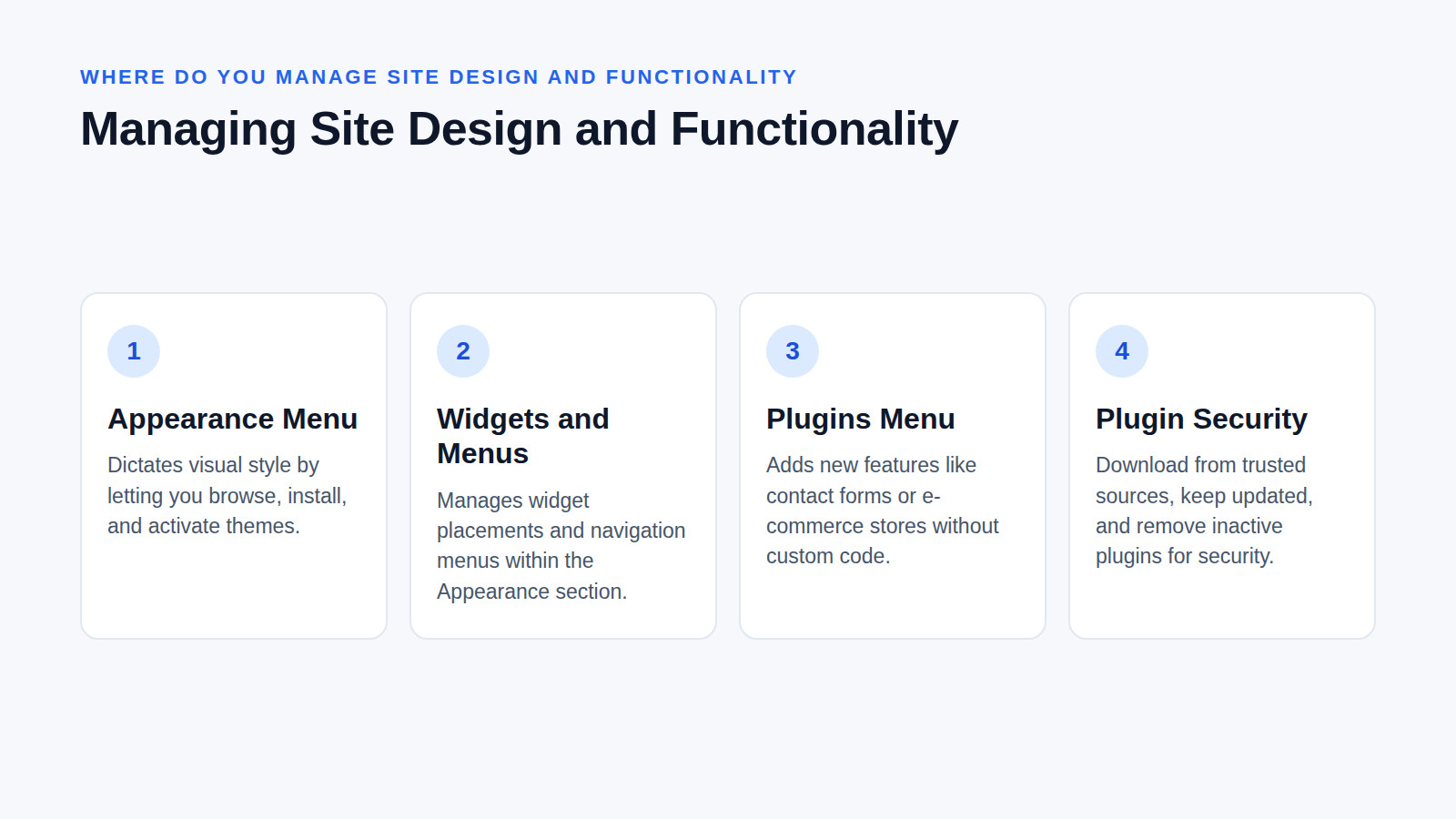
You manage site design and functionality through the Appearance and Plugins menus, which control the visual layout and extend core software capabilities. The Appearance section handles active themes and widget placements, while the Plugins section allows you to install, activate, and configure additional features without writing custom code.
The Appearance menu is where you dictate the visual style of your website. Here, you can browse, install, and activate themes that determine the overall layout and design of your front end. You can also manage your site’s widgets and navigation menus, though modern block themes have largely shifted widget management into the full-site editing interface.
The Plugins menu is where you add new features to your website. Whether you need a contact form, an e-commerce store, or advanced search engine optimization tools, you can find and install plugins directly from the official repository. Always ensure you only download plugins from trusted sources, keep them updated, and remove any inactive plugins to maintain optimal site security and performance.
How do Settings and Tools control your site behavior?
Settings and Tools control your site behavior by defining global configurations, URL structures, and maintenance utilities. The Settings menu dictates how your content displays and functions across the web, while the Tools menu provides essential utilities for importing data, exporting content, and monitoring overall system health.
The Settings menu contains several critical sub-menus that define your site’s core behavior. The General settings allow you to set your site title, tagline, and timezone. The Reading settings let you choose whether your homepage displays your latest blog posts or a static page. Crucially, the Permalinks settings allow you to define the URL structure for your posts and pages, which is a fundamental step for search engine visibility.
The Tools menu offers practical utilities for site maintenance and migration. You can use the Import and Export tools to move content between WordPress sites or backup your data in XML format. Additionally, the Site Health screen provides a comprehensive diagnostic report, highlighting security vulnerabilities, performance bottlenecks, and recommended improvements to keep your site running smoothly.
What should agencies and freelancers hide from clients?
Blogs Wizards
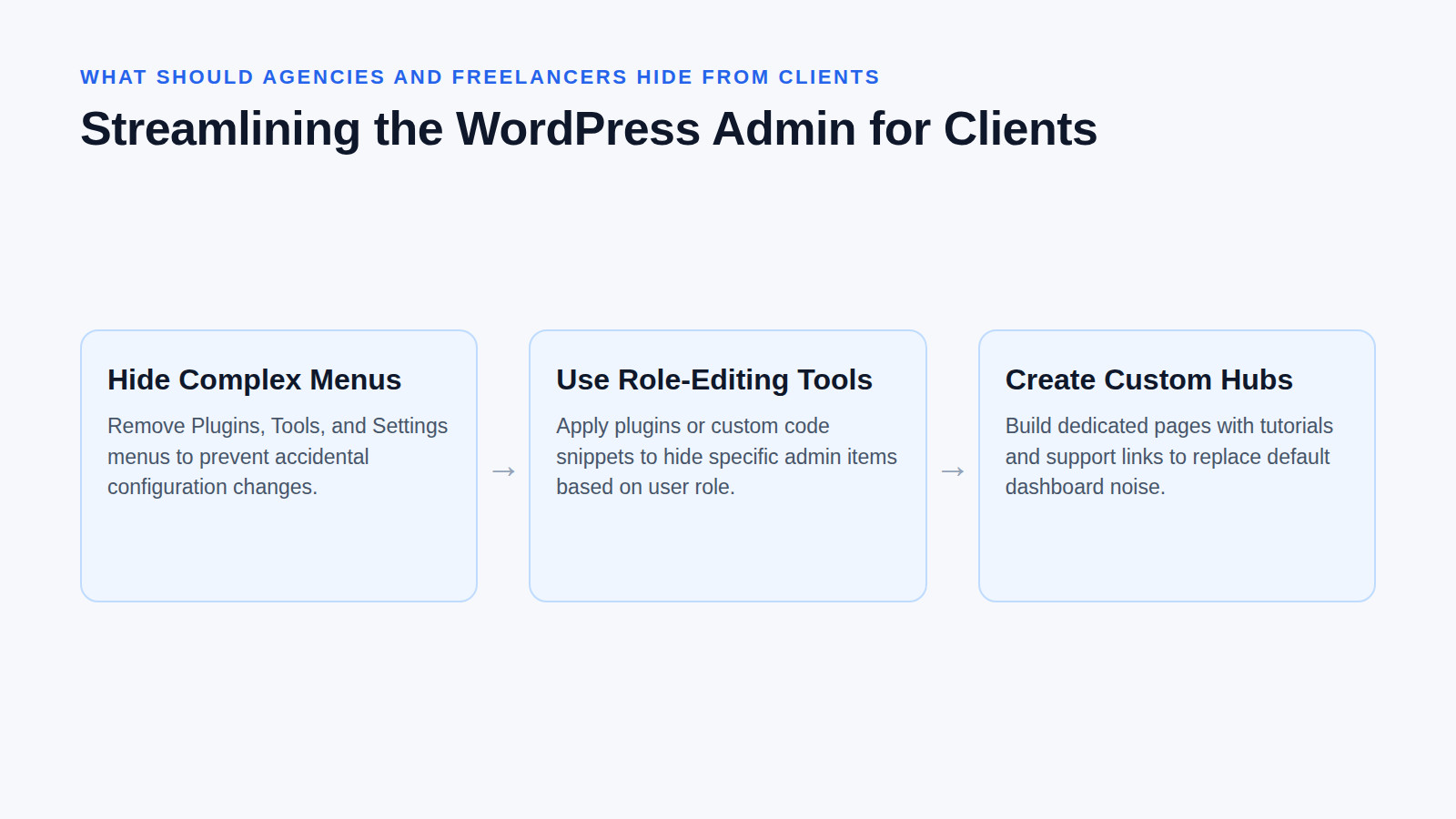
Agencies and freelancers should hide complex administrative menus and default dashboard widgets from clients to prevent accidental configuration changes and reduce visual clutter. Customizing the backend interface ensures clients only see the specific tools they need for daily content updates, creating a streamlined and less overwhelming user experience.
When handing over a website, the default WordPress admin area can be intimidating for a client who simply wants to update a blog post or change a phone number. Showing them the Plugins, Tools, and Settings menus is an open invitation for accidental errors that could break the site’s design or compromise its security.
To solve this, you can use role-editing plugins or custom code snippets to hide specific admin menu items based on the user’s role. Furthermore, you can create custom admin pages that serve as a dedicated hub for the client. These custom pages can include tutorial videos, instructions for updating their specific site, and direct links to the support contact details, replacing the default dashboard noise with highly relevant, actionable guidance.
Quick-Reference Menu Summary
Use this table as a quick guide to locate the right tool for your immediate task.
| Menu Item | Primary Function | Common Tasks |
|---|---|---|
| Dashboard | Site overview and activity feed | View recent drafts, check system updates, monitor comments. |
| Posts | Time-sensitive content management | Write blog articles, assign categories and tags, schedule updates. |
| Media | Digital asset library | Upload images and videos, edit alt text, organize files. |
| Pages | Static site structure | Build About and Contact pages, manage hierarchical menus. |
| Comments | User interaction moderation | Approve, reply to, or spam-filter visitor feedback. |
| Appearance | Visual design and layout | Activate themes, customize site identity, manage navigation menus. |
| Plugins | Feature extension | Install, activate, configure, and update third-party add-ons. |
| Users | Account and role management | Add new authors, assign capabilities, reset passwords. |
| Tools | Maintenance and migration | Import/export content, run Site Health diagnostics. |
| Settings | Global site configuration | Set permalinks, define site title, configure reading and writing rules. |
What is a WordPress dashboard?
The WordPress dashboard is the central backend control panel where administrators manage all website content, design, and settings. It provides a comprehensive interface for publishing posts, configuring themes, installing plugins, and adjusting global site parameters without needing to write custom code or edit server files directly.
How do I log into my WordPress admin area?
You log into your WordPress admin area by navigating to your domain followed by /wp-admin or /wp-login.php in your web browser. Enter your registered administrator username and password on the resulting login screen to gain secure access to the backend management interface and site controls.
What is the difference between posts and pages?
Posts are time-sensitive, chronological entries used for blog articles and news updates that utilize categories and tags for organization. Pages are static, timeless documents used for permanent website content like an About or Contact section, featuring a hierarchical structure rather than a chronological publishing timeline.
How can I customize the dashboard for my clients?
You can customize the dashboard for clients by hiding unnecessary administrative menu items and removing default widgets that cause visual clutter. Creating custom admin pages with specific instructions and restricting access to essential tools ensures clients experience a simplified, focused interface tailored to their daily content management tasks.
Related articles
- How to Migrate a WordPress Site to a New Host Without Downtime
- How to Clean a Hacked WordPress Site and Stop It Happening Again
- How to Secure a WordPress Site: 15 Steps That Actually Matter
